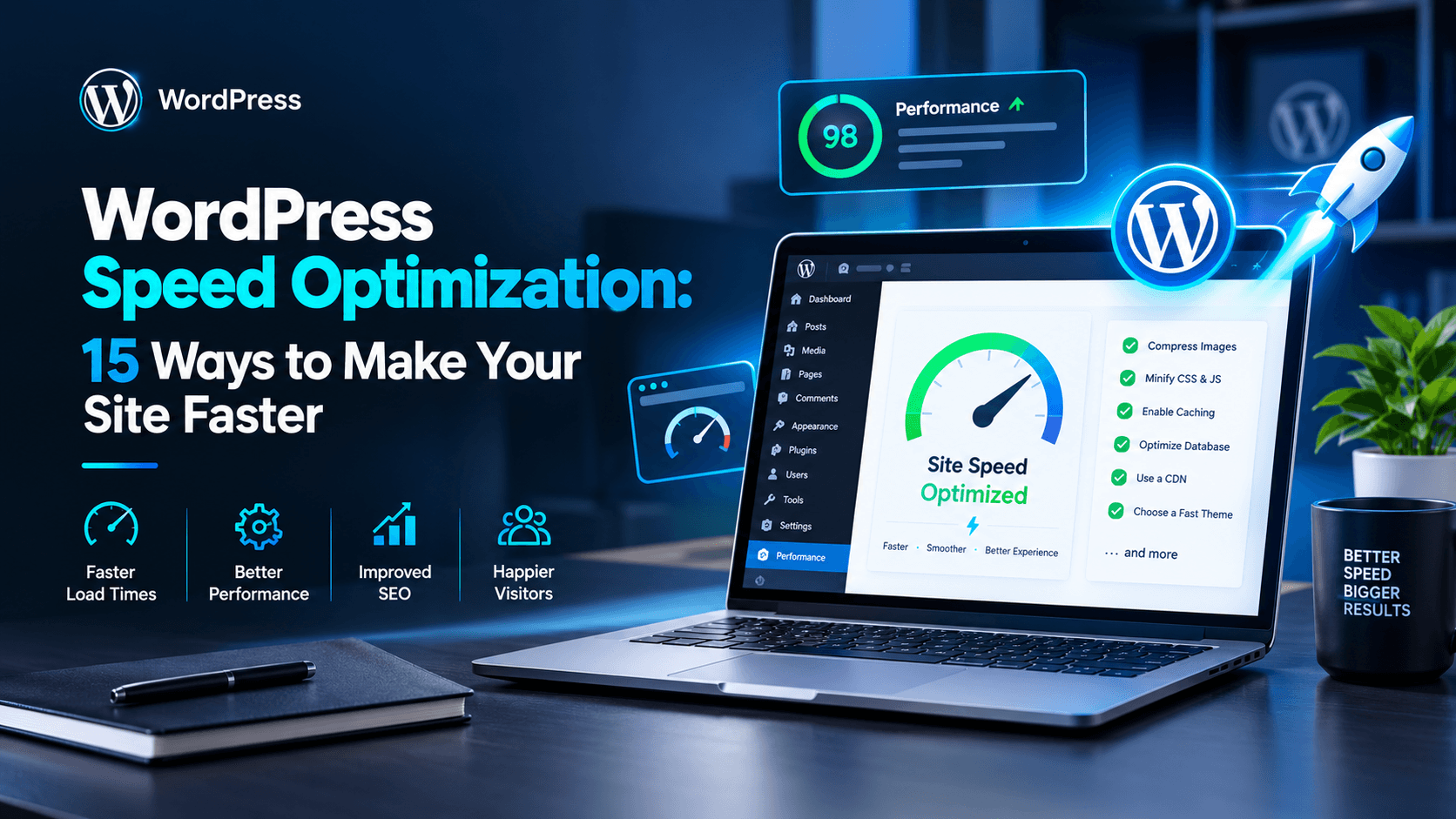

WordPress speed optimization starts with understanding that a slow WordPress website is rarely caused by one simple problem.
Your hosting might be struggling. A page could be loading oversized images. A plugin may be adding unnecessary scripts. Your theme might be generating too much front-end code. Or the browser may simply have too much JavaScript to process before the page becomes responsive.
That makes WordPress speed optimization less about installing one “speed plugin” and more about finding the actual bottleneck.
The right process is simple:
Measure → diagnose → optimize → test again.
This guide walks through that process, starting with the areas that can have the biggest impact on real-world performance.
Why WordPress Speed Matters
Website speed affects more than how quickly a page appears on screen.
A slow site can make navigation feel frustrating, delay interactions, interfere with conversions, and create a poor experience for visitors using mobile devices or slower connections.
Performance also matters in Google’s search ecosystem. WordPress speed optimization can help improve the overall page experience, and Google recommends achieving good Core Web Vitals as part of providing a good experience for users. However, Google also makes clear that good Core Web Vitals alone do not guarantee high search rankings. Search systems consider many signals, and relevance, content quality, and overall page experience still matter.
That distinction is important.
You should not optimize a WordPress website simply to turn a PageSpeed score from 89 into 100.
You should optimize it so that real people can access content, navigate the site, and interact with it without unnecessary delays.
Start With a Performance Test
Before changing plugins, replacing your theme, or moving to a new host, establish a baseline.
Test several important URLs rather than checking only the homepage.
For example:
- Homepage
- Main service page
- Blog post
- Category or archive page
- Product page
- Cart and checkout pages for WooCommerce
- Any page responsible for generating leads
Use tools such as Google PageSpeed Insights, Chrome DevTools, Lighthouse, and Google Search Console.
There is an important difference between lab data and field data.
Lab testing gives you a controlled environment for diagnosing problems. Field data reflects actual user experiences collected from real visits. Google and Chrome’s Web Vitals documentation recommends paying attention to field data when evaluating how users actually experience a page.
Don’t Optimize the Score—Optimize the Problem
Suppose a performance report gives you a mediocre score.
That number alone doesn’t tell you what to fix.
Instead, investigate the underlying metrics and diagnostics.
| Problem | What to investigate |
| Slow LCP | Server response, main image, render-blocking resources |
| Poor INP | Heavy JavaScript and long browser tasks |
| High CLS | Images, fonts, ads, or dynamically inserted content |
| High TTFB | Hosting, server processing, caching, network conditions |
| Large page size | Images, video, CSS, JavaScript, fonts |
| Too many requests | Plugins, theme assets, third-party services |
This is much more actionable than chasing a single performance score.
Understand Core Web Vitals for WordPress Speed Optimization
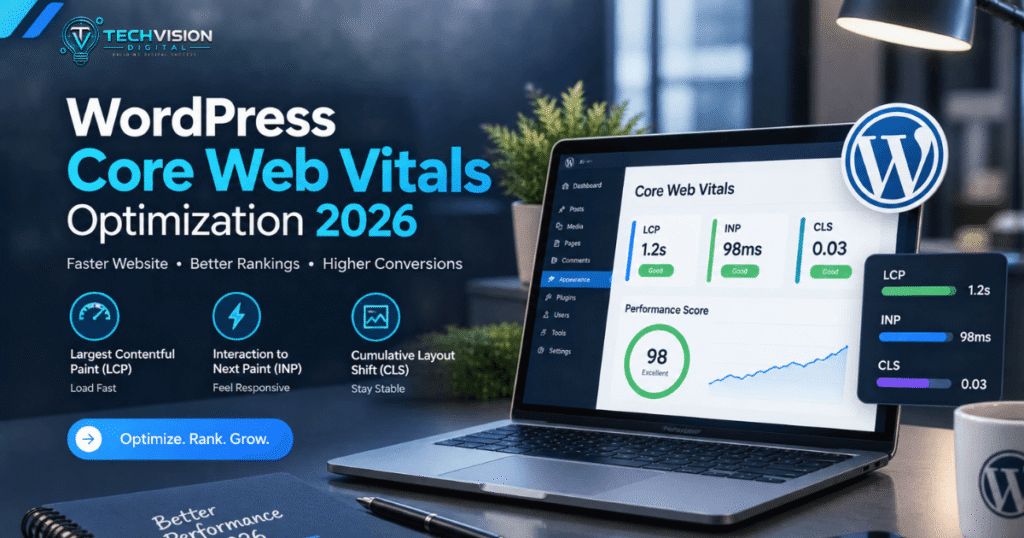
Core Web Vitals currently focus on three aspects of the user experience: loading, responsiveness, and visual stability. The three metrics are Largest Contentful Paint (LCP), Interaction to Next Paint (INP), and Cumulative Layout Shift (CLS).
Largest Contentful Paint (LCP)
LCP measures when the largest visible content element has rendered.
That element could be:
- A large hero image
- A prominent heading
- A featured image
- A large text block
- A video element
Google recommends an LCP of 2.5 seconds or less for a good experience.
If your LCP is slow, don’t immediately compress every image on your website.
First identify which element is actually being reported as the LCP element.
If it is a hero image, for example, the problem might involve its file size, loading priority, server response, or the resources required before the browser can render it.
Interaction to Next Paint (INP)
INP measures how responsive a page is to user interactions.
Think about actions such as:
- Opening a navigation menu
- Clicking a button
- Filtering products
- Opening a popup
- Typing into a form
- Adding a product to a cart
A visually loaded page can still feel slow if JavaScript keeps the browser busy.
Google’s current good INP target is 200 milliseconds or less.
For WordPress sites, excessive JavaScript can come from plugins, page builders, sliders, analytics tools, chat widgets, marketing scripts, and other functionality.
Cumulative Layout Shift (CLS)
CLS measures unexpected movement of content during a page’s lifecycle.
You’ve probably experienced this before: you try to click a button, an image or advertisement suddenly loads above it, and the page shifts underneath your cursor.
That is exactly the type of experience CLS is designed to capture.
Google recommends a CLS of 0.1 or less for a good experience. (Google for Developers)
Common causes include:
- Images without reserved dimensions
- Dynamically injected content
- Late-loading fonts
- Ads or embeds changing layout
- Elements being inserted above existing content
The fix depends on the cause. Simply installing another optimization plugin won’t necessarily solve it.
1. Choose Hosting for Effective WordPress Speed Optimization
Hosting is one of the first places to investigate when a WordPress website consistently responds slowly.
Your website’s performance depends partly on available server resources, server configuration, software versions, traffic levels, and the distance between the server and visitors. These factors are important when planning WordPress speed optimization, as WordPress’s official performance documentation identifies them as key performance considerations.
For a US-focused website, consider:
- Server location relative to your main audience
- CPU and memory resources
- PHP performance
- Database performance
- Storage technology
- Server-side caching
- Resource limits
- Traffic capacity
- CDN support
This doesn’t mean every business needs expensive dedicated hosting.
A small business website with a few service pages has very different requirements from a busy WooCommerce store processing orders and customer sessions.
The goal is to eliminate the actual infrastructure bottleneck.
If your server is consistently struggling to generate the initial response, front-end tweaks alone may produce limited results.
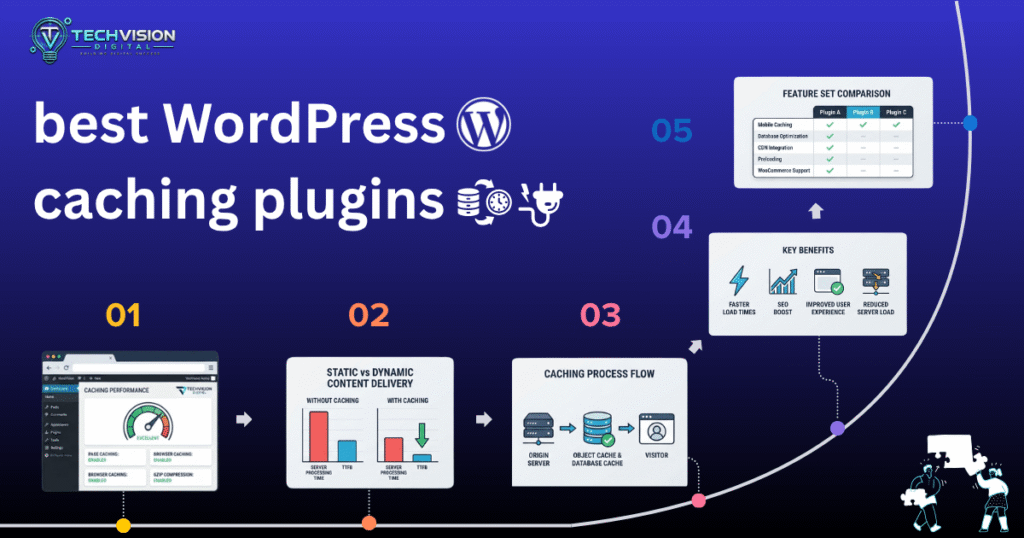
2. Add Proper Page Caching
Caching is one of the most important tools in a WordPress performance strategy and plays an important role in WordPress speed optimization.
Without caching, a request can require WordPress to execute PHP, query the database, process theme and plugin logic, generate HTML, and send that response to the browser.
A page cache can store a generated version of a page and serve that cached result to subsequent visitors instead of rebuilding the page from scratch each time.
WordPress’s official documentation describes caching as one of the quickest ways to improve WordPress performance and distinguishes between page caching, browser caching, object caching, and server caching.
But caching isn’t something you should enable blindly.
Some content is dynamic.
For example, an eCommerce website may need different behavior for:
- Cart pages
- Checkout
- Logged-in customer areas
- Personalized content
- Certain account pages
A poorly configured cache can cause stale or incorrect content to appear.
So the objective isn’t simply “turn on caching.”
It is to configure the appropriate caching layers for the type of website you’re running.
3. Optimize Images Without Breaking the User Experience
Images are often among the largest resources delivered by a webpage.
Fortunately, image optimization is one of the easier areas to improve.
Start by asking a simple question:
Does the browser really need an image this large?
Uploading a 4,000-pixel image when the design displays it at 800 pixels creates unnecessary work.
Useful practices include:
- Resize images to appropriate dimensions.
- Compress images before or during upload.
- Use modern formats such as WebP where appropriate.
- Use responsive image behavior.
- Avoid unnecessarily large background images.
- Lazy-load genuinely below-the-fold images.
- Be careful about lazy-loading the primary above-the-fold image.
WordPress’s own performance guidance recommends optimizing image files and considering modern image formats such as WebP. (WordPress Developer Resources)
The last point matters.
Lazy loading every image is not automatically a performance improvement, so it should be used carefully as part of WordPress speed optimization.
If the main image is responsible for LCP, delaying its loading can make the page’s most important visible content appear later.
The correct approach is to optimize images according to their position and purpose on the page.
4. Audit Your WordPress Plugins
Plugins are not inherently bad for performance. The real issue is what a plugin loads, where it loads it, and how much work it performs. This is an important consideration when carrying out WordPress speed optimization.
A lightweight plugin that performs one necessary task may have little noticeable impact. Meanwhile, a poorly optimized plugin can add database queries, CSS, JavaScript, external requests, or background processing that affects performance.
Start by reviewing every active plugin.
Ask:
- Do I still need this plugin?
- Does it load assets on pages where they are not needed?
- Is another plugin already providing the same functionality?
- Is it maintained and compatible with the current WordPress environment?
- Does disabling it improve the specific bottleneck I’m investigating?
Avoid keeping plugins simply because they might be useful someday.
Don’t Judge Plugins by Count Alone
You may hear advice such as:
“Never use more than 20 plugins.”
That is not a useful technical rule.
A WordPress site with 30 carefully selected plugins can potentially perform better than a site with 10 poorly implemented ones.
Plugin quality, behavior, configuration, and workload matter more than the raw number.
For example, an eCommerce website naturally needs more functionality than a simple five-page business site.
The better strategy is to understand what each plugin contributes and remove unnecessary work.
5. WordPress Speed Optimization: Keep Your Theme Lean
Your WordPress theme controls a large part of the front-end structure.
A theme can introduce:
- CSS files
- JavaScript
- Fonts
- Widgets
- Layout components
- Animations
- Icons
- Additional scripts
- Theme-specific functionality
If your theme loads resources that your pages never use, visitors may still have to download or process them.
This becomes particularly important with visually complex themes and page-building systems.
A practical WordPress speed optimization process should therefore examine the actual assets being loaded rather than assuming the theme is fast or slow based solely on its name.
If you are using a page builder, review the output it generates as well.
The question isn’t:
“Is this builder good?”
The better question is:
“What does this particular page actually send to the browser?”
6. WordPress Speed Optimization: Reduce Unnecessary CSS and JavaScript
Modern websites can send substantial amounts of CSS and JavaScript to the browser.
Some of it is necessary.
Some of it isn’t.
A page might load scripts for a slider that doesn’t exist on that page, styles for components that aren’t being used, or functionality required by another section of the website.
This creates unnecessary work.
Defer or Delay Non-Critical JavaScript
JavaScript doesn’t always need to execute immediately.
As part of WordPress speed optimization, non-critical scripts can sometimes be deferred or delayed so the browser can focus first on the content the visitor needs.
Potential candidates include certain:
- Analytics scripts
- Chat widgets
- Social integrations
- Marketing scripts
- Tracking tools
- Interactive features below the fold
But don’t delay scripts without testing their dependencies, because some scripts may be required for important website functionality.
A script that controls navigation, forms, consent functionality, or other essential features may need to remain available earlier.
Performance optimization should never break usability.
Remove Unused CSS for Better WordPress Speed Optimization
Unused CSS increases the amount of code the browser needs to download and process.
Some optimization systems can identify unused CSS and generate a smaller critical set for the page.
However, aggressive CSS removal can also break layouts.
After changing CSS delivery, test:
- Desktop
- Mobile
- Menus
- Forms
- Buttons
- Popups
- Responsive layouts
- Interactive components
A faster page that looks broken is not an optimization.
7. Optimize Fonts
Fonts can affect both visual presentation and performance.
A website may load several font families, multiple weights, italic variants, and external font resources even when only a few are actually used.
For example, a design that needs only regular and bold text doesn’t necessarily need six different weights.
Review:
- Number of font families
- Number of font weights
- Font file sizes
- External font requests
- Loading strategy
- Fallback fonts
Reducing unnecessary font variants can reduce resource requirements and is an important part of WordPress speed optimization.
Font loading can also affect layout stability and the time at which text becomes visually usable.
If a custom font causes visible content to change dimensions after loading, it may contribute to layout shifts.
That is why typography should be treated as part of performance—not just visual design.
8. WordPress Speed Optimization: Be Careful With Third-Party Scripts
Third-party services can add significant complexity to a webpage.
Examples include:
- Google Analytics
- Advertising scripts
- Live chat
- Social media widgets
- Embedded videos
- Heatmaps
- A/B testing tools
- Scheduling tools
- Marketing platforms
These services can be valuable. The answer isn’t to remove every third-party script.
Instead, evaluate whether each one provides enough business value to justify its performance cost.
Ask:
Does this script help the visitor or the business enough to justify loading it?
If the answer is unclear, investigate it.
You may be able to:
- Remove unnecessary tools
- Load certain scripts only on relevant pages
- Delay non-essential functionality
- Replace heavy embeds with lighter alternatives
- Reduce duplicate tracking systems
This is particularly important for pages designed to generate leads. A dozen marketing tools may sound useful, but collectively they can create a poor experience for the person you’re trying to convert.
9. Use a CDN When It Makes Sense
A Content Delivery Network, or CDN, stores and delivers certain website resources from locations distributed across different regions.
The basic idea is straightforward: instead of every visitor requesting static resources from one origin server, cached resources can be delivered from infrastructure closer to the visitor.
A CDN can be useful for websites serving visitors across large geographic areas.
Typical resources that can benefit include:
- Images
- CSS
- JavaScript
- Fonts
- Other static files
However, a CDN is not a magic solution for every WordPress performance problem.
If your origin server is slow to generate HTML, a CDN may not eliminate that underlying bottleneck.
Likewise, if a page is overloaded with JavaScript, distributing the JavaScript geographically doesn’t automatically make the JavaScript itself less expensive for the browser to process.
Think of a CDN as one layer of the performance stack, not the entire strategy.
10. Improve Time to First Byte
Time to First Byte, commonly called TTFB, describes how long it takes for a browser to receive the first byte of a response after making a request.
It can be influenced by several factors, including:
- Server processing
- Hosting resources
- Network conditions
- Database work
- Caching
- Application architecture
For WordPress, caching can dramatically change how much work the server has to perform for repeat requests.
If a cached page can be served directly instead of dynamically generated every time, the server may have much less work to do.
But don’t treat TTFB as a metric you can fix with one universal threshold.
It is a diagnostic signal.
If it is consistently high, investigate the complete request path instead of simply installing another optimization plugin.
11. WordPress Speed Optimization: Optimize the WordPress Database Carefully
WordPress stores content and configuration information in a database.
Over time, databases can accumulate unnecessary data, including:
- Post revisions
- Expired transient data
- Spam comments
- Trash
- Unused metadata
- Plugin-generated records
Cleaning unnecessary data can help reduce database clutter, but database optimization should be approached carefully.
Always maintain reliable backups before performing destructive database operations.
This is especially important for WooCommerce websites and other sites with valuable transactional data.
Don’t blindly delete database records because an optimization tool labels them as “unnecessary.”
First understand what the data represents.
Some information that appears old may still be required by a plugin, theme, or business process.
12. Keep WordPress and Its Components Maintained
Performance and maintenance are closely connected.
Keep your WordPress installation, themes, plugins, and server-side software appropriately maintained and compatible.
Updates can include performance improvements, bug fixes, security fixes, and compatibility changes.
But production websites should not be updated carelessly.
Before major changes:
- Create a reliable backup.
- Test significant updates in a staging environment when possible.
- Check critical functionality.
- Review the site after updating.
- Monitor performance after the change.
This matters because optimization isn’t a one-time project.
A website can become slower later when a new plugin is introduced, content grows, scripts change, or a theme is redesigned.
13. Optimize Mobile Performance Separately
A desktop performance test can hide problems experienced by mobile visitors.
Mobile devices may have:
- Less processing power
- Different network conditions
- Smaller screens
- Higher latency
- More limited resources
That means responsive design isn’t enough.
Test how the actual mobile page behaves.
Look particularly closely at:
- Hero images
- Navigation
- JavaScript
- Popups
- Sticky elements
- Forms
- Product filters
- Third-party widgets
- Large background images
A desktop visitor with a fast connection may tolerate unnecessary resources that become much more noticeable on a mobile device.
For many websites, mobile should be one of the first environments considered during performance testing—not something checked at the end.
14. WordPress Speed Optimization: Don’t Forget the Browser’s Work
A common mistake is focusing entirely on download size.
A file can be relatively small and still require significant browser processing.
JavaScript execution, style calculation, layout, rendering, and interaction handling all consume resources.
This is why two pages with similar file sizes can feel completely different.
For example, a page containing a large amount of interactive JavaScript may feel sluggish even if its total transferred size doesn’t look alarming.
When diagnosing performance, think about the complete lifecycle:
Server → Network → Download → Parse → Execute → Render → Interact
Improving only one stage may not solve a problem occurring in another.
15. Build a Repeatable WordPress Speed Optimization Workflow
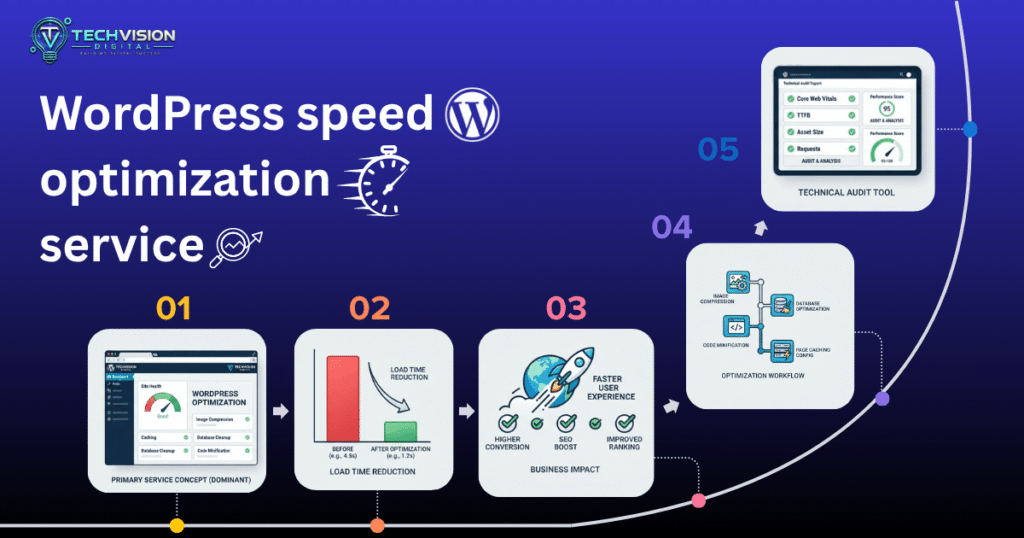
WordPress speed optimization works best as an ongoing process rather than a one-time score-chasing exercise. A website can become slower after adding a new plugin, changing a theme component, uploading large images, adding tracking scripts, or making changes to hosting and caching.
A repeatable workflow makes performance improvements easier to measure and maintain.
Step 1: Measure Representative Pages
Do not test only the homepage. Check the pages that matter most to your visitors and business.
Useful examples include:
- Homepage
- Main service pages
- Blog posts
- Landing pages
- Product and category pages
- Contact page
- Other high-traffic templates
Use tools such as PageSpeed Insights and the Core Web Vitals report in Search Console to understand both lab and real-user performance. Google recommends looking at Core Web Vitals alongside the broader page experience rather than treating one score as the entire SEO picture.
Step 2: Identify the Actual Bottleneck
A low performance score does not automatically tell you what to fix.
For example, a slow LCP could involve:
- Slow server response
- A large hero image
- Render-blocking resources
- Excessive CSS
- Web fonts
- Client-side JavaScript
- Third-party content
Similarly, poor interaction performance can require investigating JavaScript execution and long tasks rather than simply enabling another caching option.
The goal is to find the bottleneck before choosing the solution.
Step 3: Fix the Highest-Impact WordPress Performance Problem First
Avoid making dozens of changes simultaneously.
If the server is consistently slow, investigate hosting and TTFB before spending hours adjusting image settings. If the main problem is an oversized hero image, optimize that asset before changing unrelated database settings.
This approach makes optimization more predictable because you can identify which change actually improved performance.
Step 4: Test WordPress Performance After Every Major Change
After changing caching, JavaScript, images, hosting, plugins, or theme functionality, test again.
Also check the actual website manually.
A technically faster page is not an improvement if:
- A menu no longer works
- A form breaks
- A checkout becomes unreliable
- Content flashes incorrectly
- Mobile navigation stops working
- Important scripts fail
Performance optimization should preserve functionality and usability.
Step 5: Monitor Performance Over Time
Real-user performance can change as your website changes.
Field data is particularly useful because it represents the experience of actual visitors. Web Vitals uses field measurements and evaluates Core Web Vitals using the 75th percentile of users.
That means optimization should not end when a testing tool produces a good score. Continue monitoring important templates and investigate meaningful regressions.
Common WordPress Speed Optimization Mistakes
Knowing what not to do is just as important as knowing what to optimize.
Chasing a Perfect 100 Score
A perfect PageSpeed Insights score is not the purpose of website optimization.
Different websites have different functionality, audiences, technologies, and business requirements. A useful target is a fast, stable, functional experience that performs well for real users.
Core Web Vitals are important, but Google does not state that achieving good Core Web Vitals guarantees top search rankings.
Installing Too Many Optimization Plugins
Adding multiple plugins that perform overlapping caching, minification, lazy-loading, or optimization tasks can create conflicts.
More optimization tools do not automatically mean more optimization.
Choose a configuration that matches your hosting environment and test carefully after enabling major features.
Lazy-Loading Everything
Lazy loading is useful for resources that are not immediately needed, but applying it indiscriminately can delay important above-the-fold content.
The main content visible when the page opens deserves special attention because it can directly affect LCP.
Removing Plugins Blindly
Plugin count alone does not determine performance.
A lightweight plugin can have little impact, while one poorly optimized feature can create significant work for the browser or server.
Instead of asking only, “How many plugins do I have?” ask:
What does each plugin load, process, request, or add to the page?
Optimizing Desktop Only
A site can look excellent on a desktop connection while providing a poor experience on mobile.
Because Core Web Vitals are evaluated using real-user data across devices and environments, mobile performance deserves dedicated testing.
Making Changes Without Backups or Testing
Performance work can involve caching, JavaScript, CSS, database settings, server configuration, and theme files.
Before making significant changes, use appropriate backups and a safe testing process. For WooCommerce and other transactional websites, functional testing is especially important.
When You Should Consider Professional WordPress Speed Optimization
DIY optimization is possible for many WordPress websites, especially when the problems are straightforward.
Professional help becomes more useful when performance problems are persistent or technically complex.
Examples include:
- Consistently high TTFB
- Poor Core Web Vitals despite basic optimization
- Complex JavaScript issues
- Large WooCommerce stores
- Slow database queries
- Hosting limitations
- Plugin conflicts
- Custom theme performance problems
- Multiple third-party integrations
- Performance regressions that are difficult to reproduce
The important point is to diagnose the underlying problem instead of applying a generic list of speed tricks.
For businesses that depend on their website for leads, sales, or customer communication, performance work should also consider reliability, accessibility, SEO, conversion paths, and functionality—not just a testing score.
Frequently Asked Questions
How can I speed up a WordPress website?
Start by measuring representative pages and identifying the largest bottleneck. Common areas include hosting, caching, images, plugins, CSS, JavaScript, fonts, third-party scripts, database performance, and CDN configuration.
Do not make every optimization at once. Fix the most important issue, test the result, and continue from there.
Does a caching plugin make WordPress faster?
Caching can reduce the amount of work required to generate and deliver pages, particularly for content that can be served from cache. WordPress documentation distinguishes page caching, browser caching, object caching, and other caching layers, so the exact benefit depends on how the website and hosting environment are configured.
A caching plugin can therefore help, but simply installing one does not guarantee that every performance problem will disappear.
How many WordPress plugins are too many?
There is no universal plugin-count limit.
Performance depends more on what plugins do and how efficiently they operate than on the number displayed in the WordPress dashboard. Review unnecessary plugins, identify overlapping functionality, and test the performance impact of resource-heavy features.
Does website speed affect SEO?
Website performance is one part of Google’s broader page experience and ranking systems. Core Web Vitals are used by Google systems, but good Core Web Vitals alone do not guarantee higher rankings.
SEO still depends on many factors, including relevance, content quality, technical accessibility, and overall user experience.
What is a good WordPress page load time?
There is no single universal page-load number that makes every website “fast.”
A better approach is to examine Core Web Vitals and other performance measurements for your actual pages and visitors. For Core Web Vitals, Google currently identifies good thresholds of LCP at 2.5 seconds or less, INP below 200 milliseconds, and CLS below 0.1.
These thresholds are useful benchmarks, but they should be considered alongside the complete user experience.
Improve Your WordPress Website Performance
WordPress speed optimization is not about installing the largest collection of performance plugins or forcing every testing tool to display a perfect score.
The better approach is systematic:
Measure → Diagnose → Optimize → Test → Monitor.
Start with the problems that have the greatest effect on your users. Optimize hosting and caching where appropriate, serve properly sized images, reduce unnecessary browser work, control third-party scripts, maintain your WordPress installation, and monitor real-user performance over time.
If your website has persistent performance problems, a structured technical audit can help identify the bottlenecks that generic optimization checklists often miss.
For professional website performance, technical SEO, and WordPress development support, see the relevant TechVision Digital service page here: TechVisionDigital.com.