
WordPress Core Web Vitals optimization 2026 is less about achieving a perfect PageSpeed score and more about making a website load, respond, and remain visually stable for real visitors. Today, Google’s Core Web Vitals focus on three user-experience measurements: Largest Contentful Paint (LCP), Interaction to Next Paint (INP), and Cumulative Layout Shift (CLS).
For WordPress site owners, this distinction matters. A site can have an impressive-looking Lighthouse score and still feel slow on a real phone. Likewise, installing another performance plugin may do very little if the actual problem is an oversized hero image, expensive JavaScript, slow hosting, or elements shifting during page load.
Instead, the practical approach is to measure first, identify the bottleneck, and then apply the smallest effective fix.
What Are Core Web Vitals in 2026?
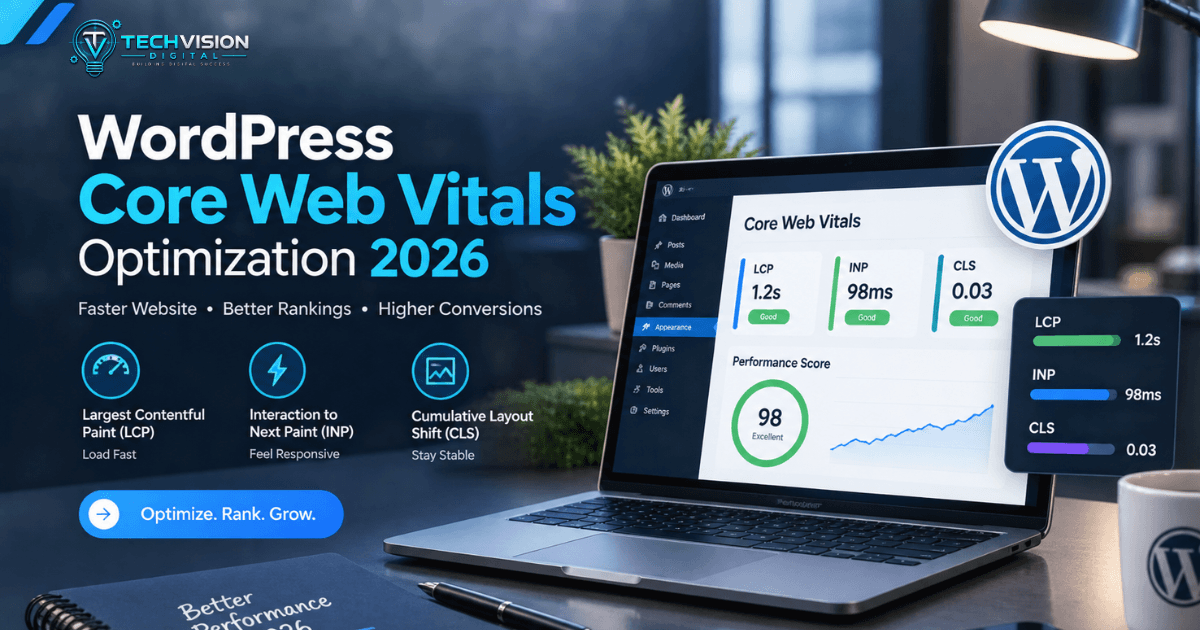
Core Web Vitals are Google’s user-focused performance metrics for loading, responsiveness, and visual stability. Currently, the set consists of:
- LCP: how quickly the main visible content loads
- INP: how responsive the page feels when users interact with it
- CLS: how much visible content unexpectedly moves around
Google currently recommends aiming for an LCP of 2.5 seconds or less, an INP of 200 milliseconds or less, and a CLS of 0.1 or less. Importantly, these thresholds are evaluated at the 75th percentile of page visits rather than by looking only at one individual test.
As a result, a single desktop PageSpeed test cannot tell you the complete performance story.
LCP: Make the Main Content Appear Faster
LCP measures when the largest image, text block, or video visible in the initial viewport has rendered.
On a WordPress site, for example, the LCP element might be:
- A hero image
- A large heading
- A featured image
- A banner
- A video poster
- A prominent content block
If the LCP element is a large hero image, compressing unrelated images deeper down the page may have almost no effect on the metric.
Instead, investigate how that particular element is delivered.
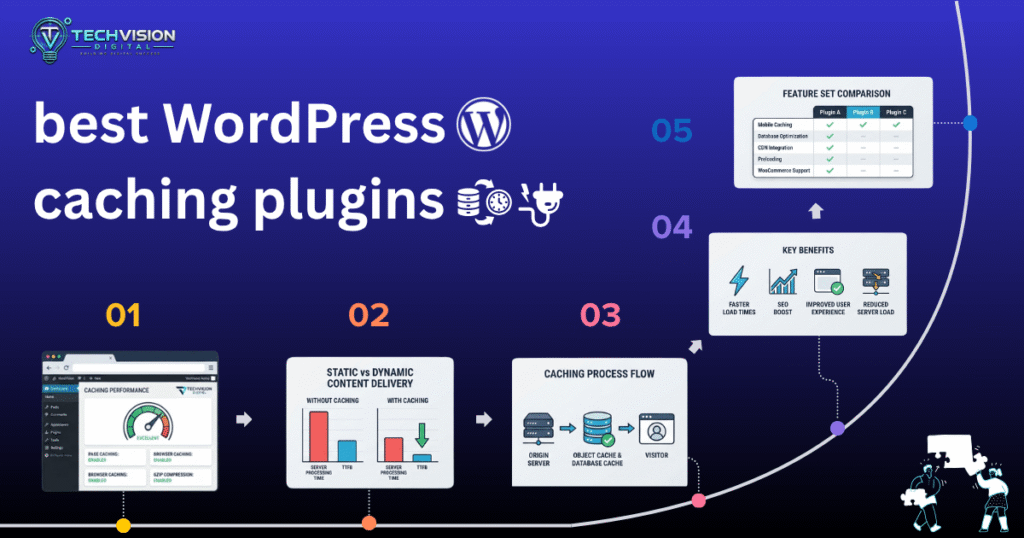
Common WordPress causes include oversized images, slow server response, unnecessary redirects, render-blocking resources, poorly prioritized assets, and excessive CSS or JavaScript.
Therefore, the useful question is not simply “How do I make WordPress faster?”
It is:
“What is delaying the element that becomes my LCP?”
That shift in thinking makes optimization considerably more effective because it connects the fix to the actual bottleneck.
INP: Improve Interaction Responsiveness
INP measures how quickly a page responds to user interactions. Google currently considers 200 milliseconds or less a good target.
This becomes particularly important, for instance, on WordPress sites using:
- Large page builders
- Complex navigation menus
- Sliders
- Popups
- Filtering systems
- Animation libraries
- Third-party tracking scripts
- Chat widgets
- WooCommerce functionality
A page may appear visually loaded while still feeling sluggish because the browser is busy executing JavaScript.
Consequently, the solution is not necessarily more caching. The investigation often needs to move toward JavaScript execution, event handlers, third-party scripts, and the amount of work performed on the main thread.
Why WordPress Sites Often Struggle With Core Web Vitals
WordPress itself is only one part of the performance equation.
In practice, the final experience is influenced by the interaction between the hosting environment, WordPress core, theme, plugins, page builder, images, fonts, JavaScript, CSS, caching configuration, CDN, and the browser or device used by the visitor.
For that reason, a useful performance audit looks at the entire delivery chain rather than blaming WordPress automatically.
WordPress’s own developer documentation identifies hosting, configuration, caching, compression, database tuning, and other infrastructure factors as parts of WordPress performance optimization.
This also explains why simply adding optimization plugins can create diminishing returns. A plugin may help with one bottleneck while adding additional CSS, JavaScript, database queries, or configuration complexity elsewhere.
Ultimately, the goal is not to accumulate optimization features.
The goal is to remove unnecessary work.
How to Optimize WordPress Core Web Vitals
The right optimization process starts with diagnosis rather than changing settings at random. Before disabling plugins, rebuilding a page, or adding another caching layer, establish which metric is failing and which element or resource is responsible.
1. Measure Real-World Performance First
First, start with field data whenever it is available. Field data represents experiences from actual users and is particularly useful for understanding whether a site consistently meets Google’s Core Web Vitals thresholds.
Google Search Console can show Core Web Vitals performance for groups of URLs, while PageSpeed Insights can provide both field and laboratory information when the necessary data is available.
This distinction is important:
Field data tells you what users experienced. Lab data helps you investigate why.
For example, a local Lighthouse test might produce excellent results because it runs under controlled conditions, while visitors using slower mobile connections may experience something very different.
When reviewing a WordPress site, therefore, compare:
- Mobile versus desktop
- Important page templates
- Homepage versus internal pages
- Landing pages versus blog posts
- Product pages versus category pages
- Logged-in versus logged-out experiences where relevant
Most importantly, don’t assume that every URL has the same performance problem.
Fix LCP at the Source
Once you’ve identified the LCP element, investigate its loading path.
For a WordPress hero image, check its dimensions and file size first. Serving a 3,000-pixel image to a mobile visitor when a much smaller version is appropriate wastes bandwidth and can delay rendering.
WordPress supports responsive image functionality, allowing browsers to select an appropriate image resource from available sizes.
In addition, useful LCP improvements can include:
- Compressing the LCP image
- Using an appropriately sized image
- Avoiding unnecessary background-image implementations for important content
- Reducing server response time
- Removing unnecessary render-blocking resources
- Preloading a genuinely critical resource when appropriate
- Reducing excessive CSS
- Avoiding unnecessary redirects
- Improving cache effectiveness
However, be careful with preloading. Preloading everything that looks important can compete for bandwidth and make the browser’s resource priorities less effective. Instead, the objective is better prioritization, not simply more preload directives.
Don’t Lazy-Load the LCP Image Automatically
Lazy loading is useful for images that are initially outside the viewport. As a result, it can reduce unnecessary work because those resources don’t need to download immediately.
However, applying lazy loading to the image that becomes the LCP element can delay the very resource you want the browser to prioritize.
The better rule is simple:
Images below the initial viewport are candidates for lazy loading; critical above-the-fold content should be evaluated more carefully.
Ultimately, the correct implementation depends on the page structure and how the image is discovered by the browser.
Improve INP by Reducing JavaScript Work
INP problems require a different strategy.
When a visitor clicks a menu, filter, button, or product selector and the interface takes too long to respond, look at what the browser is doing immediately before and after that interaction.
Potential sources include:
- Heavy JavaScript bundles
- Long-running event handlers
- Excessive DOM manipulation
- Third-party scripts
- Large page-builder front ends
- Analytics and marketing tools
- Sliders and animation libraries
- Complex WooCommerce interactions
In many cases, a useful optimization is to remove functionality that doesn’t contribute enough value to justify its performance cost.
For example, if a marketing site contains several animation libraries but visitors gain little from the animations, removing unnecessary effects can be more valuable than trying to optimize every individual script.
The same principle applies to third-party services. A chat widget, analytics platform, social feed, advertising script, or heatmap tool may provide business value. Nevertheless, that doesn’t make its performance cost irrelevant.
Ask two questions:
- Does this script provide measurable business or user value?
- Does it need to run immediately?
If the answer to the second question is no, delaying or conditionally loading the script may be worth considering.
Fix CLS by Stabilizing the Layout
CLS is usually easier to understand when you watch a page load.
If content moves unexpectedly after appearing, identify the element responsible.
Common causes include:
- Images without reserved dimensions
- Advertisements injected into existing content
- Dynamically inserted banners
- Web fonts changing text layout
- Late-loading components
- Popups or promotional bars
- Elements whose dimensions change after JavaScript executes
Generally, the solution is to reserve space or ensure the browser knows the dimensions before the element changes the layout.
For images, explicit dimensions or appropriate aspect-ratio handling can help prevent the browser from having to reflow the page when the image arrives.
Similarly, for dynamic components, consider where and how space is reserved before the component is injected.
Fonts Can Affect Visual Stability
Web fonts deserve special attention because typography is part of the visible interface.
For instance, a font that loads late can cause text metrics to change, potentially producing visible movement or changes in line wrapping.
That doesn’t mean every WordPress site should remove custom fonts. Instead, evaluate:
- Number of font families
- Number of weights
- Font file sizes
- Loading strategy
- Whether all selected weights are actually used
- Whether a system font would provide an acceptable alternative
In some cases, reducing four unused font weights can be a more sensible optimization than obsessively adjusting minor CSS properties.
Don’t Treat Caching as a Universal Fix
Caching is one of the most useful performance tools for WordPress. However, it cannot solve every Core Web Vitals problem.
A page cache can reduce the work required to generate a page repeatedly. Similarly, browser caching can reduce repeat downloads, while a CDN can improve asset delivery for geographically distributed visitors.
Nevertheless, caching does not automatically fix:
- An oversized LCP image
- Excessive JavaScript execution
- Poorly designed page-builder layouts
- Layout shifts
- Unnecessary third-party scripts
- Bloated CSS
- Poor interaction logic
Therefore, think of caching as one layer of the performance stack, not the entire stack.
What About Page Builders Like Elementor?
Page builders can make WordPress development faster and more accessible. At the same time, complex designs can introduce additional markup, styles, scripts, and widgets.
That doesn’t mean a site built with Elementor is automatically slow.
Instead, the more useful question is how the page is built.
A relatively simple Elementor page with optimized assets may perform better than a custom-coded page overloaded with third-party JavaScript.
When optimizing a page-builder site, examine:
- Unused widgets
- Nested containers
- Excessive animations
- Large background images
- Unnecessary motion effects
- Duplicate styling
- Third-party widgets
- Excessive DOM complexity
- Assets loaded globally when only one page needs them
Ultimately, the goal isn’t to remove the page builder simply because it is a page builder. The goal is to eliminate unnecessary work while preserving the design and functionality visitors actually need.
A Practical WordPress Core Web Vitals Optimization Workflow in 2026
The most reliable workflow is to treat performance optimization as a diagnostic process rather than a checklist of plugins.
Step 1: Establish the Baseline
First, record the current performance before making changes.
Check important templates on mobile and desktop, then note:
- LCP
- INP
- CLS
- TTFB
- Largest Contentful Paint element
- Major JavaScript and CSS resources
- Image sizes
- Third-party scripts
- Server and hosting characteristics
At the same time, use PageSpeed Insights, Chrome DevTools, and Google Search Console where applicable. Real-user data should carry significant weight because laboratory conditions cannot represent every visitor’s device, connection, and browsing environment.
Step 2: Identify the Largest Bottleneck
Don’t try to fix everything simultaneously.
When LCP is the problem, investigate the LCP element first. On the other hand, a poor INP score calls for an examination of JavaScript and interaction processing. For CLS issues, watch the page as it loads and identify exactly what is moving.
This approach also makes troubleshooting safer. You can change one category of resources, retest, and determine whether the change actually helped.
Step 3: Optimize the WordPress Stack
Next, review the major components of the site:
- Hosting and server response
- WordPress configuration
- Theme
- Plugins
- Page builder
- Images and media
- CSS
- JavaScript
- Fonts
- Caching
- CDN
- Third-party services
WordPress’s own performance documentation emphasizes that hosting, themes, plugins, images, caching, compression, software versions, database configuration, and content delivery can all affect performance.
For this reason, there is no universal “best WordPress speed setting.”
The optimal configuration depends on the site’s architecture.
Common WordPress Core Web Vitals optimization Mistakes in 2026
Installing Too Many Optimization Plugins
Adding multiple plugins that perform overlapping functions can make troubleshooting harder and may create conflicts.
For example, several tools might independently attempt to:
- Minify CSS
- Delay JavaScript
- Optimize images
- Lazy-load assets
- Generate critical CSS
- Preload resources
- Cache pages
As a result, more optimization features do not automatically mean better performance.
Instead, use the smallest configuration that reliably solves the identified problems.
Chasing a 100 PageSpeed Score
A perfect laboratory score is not the objective.
A real website has analytics, forms, navigation, marketing scripts, images, fonts, and business functionality. Consequently, removing useful functionality simply to produce a higher synthetic score can be a poor trade.
The more meaningful question is:
Does the site provide a fast, responsive, stable experience for its actual visitors?
Core Web Vitals are specifically designed around user experience. Therefore, performance decisions should reflect that objective rather than a single synthetic number.
Deleting Plugins Without Testing
Plugin count alone doesn’t determine performance.
One poorly implemented plugin can cause more trouble than several lightweight plugins.
Instead of asking:
“How many plugins are installed?”
ask:
“Which plugins load assets, execute code, create database queries, or add functionality that affects this page?”
In practice, WordPress performance work should focus on what individual components actually do rather than relying on plugin count as a shortcut.
Optimizing Desktop While Ignoring Mobile
Mobile visitors frequently operate under more constrained CPU, memory, and network conditions.
As a result, a page that feels fast on a powerful desktop computer can behave very differently on a mid-range smartphone.
For that reason, Core Web Vitals optimization should include mobile testing rather than treating mobile as an afterthought.
When You Should Consider Professional WordPress Optimization
Some performance problems are straightforward:
- Compressing oversized images
- Removing unused plugins
- Improving caching
- Reducing unnecessary fonts
- Replacing unnecessarily heavy media
However, other problems require deeper investigation.
Professional help becomes more reasonable when:
- Multiple optimization attempts have produced inconsistent results
- INP remains poor despite basic optimizations
- The site relies heavily on JavaScript
- WooCommerce interactions are slow
- Server response times remain problematic
- Theme or plugin conflicts are suspected
- A page builder has become excessively complex
- Performance varies substantially between templates
- The site generates significant revenue and performance changes require careful testing
In those situations, the objective isn’t simply to make a website “faster.”
It’s to improve performance without breaking design, functionality, conversions, accessibility, or maintainability.
WordPress Core Web Vitals Optimization 2026 Checklist
Before considering the optimization work complete, review the following:
- Test important URLs rather than only the homepage
- Review mobile and desktop performance
- Check field data when available
- Identify the LCP element
- Optimize the actual LCP resource
- Reduce unnecessary JavaScript
- Investigate slow interactions affecting INP
- Reserve space for images and dynamic content
- Check fonts for layout instability
- Optimize image dimensions and compression
- Review plugin and theme overhead
- Configure caching appropriately
- Evaluate CDN usage where beneficial
- Review hosting and server response
- Test third-party scripts
- Retest after meaningful changes
- Confirm that functionality still works
In addition, WordPress documentation recommends considering caching, compression, image optimization, content offloading/CDNs, software optimization, and database tuning as part of a broader performance strategy.
Frequently Asked Questions
Are Core Web Vitals a WordPress-specific ranking factor?
No. Core Web Vitals are web performance metrics rather than a WordPress-specific ranking system. Instead, WordPress is simply one of many platforms on which a site can be built.
Is a 100 PageSpeed score required for SEO?
No. A perfect PageSpeed score is not a prerequisite for search visibility. Instead, performance should be evaluated alongside content quality, relevance, technical SEO, usability, and many other factors.
Can a WordPress caching plugin fix Core Web Vitals?
It can help with certain performance bottlenecks, particularly server and delivery-related problems. However, it cannot automatically solve every LCP, INP, or CLS issue.
Should every WordPress image be lazy-loaded?
No. Images that are important to the initial viewport need to be evaluated differently from images farther down the page. Therefore, blindly lazy-loading critical content can delay its appearance.
Can Elementor cause poor Core Web Vitals?
Elementor itself does not automatically make every website fail Core Web Vitals. However, complex page structures, excessive widgets, animations, assets, and third-party integrations can increase the amount of work a browser must perform.
How often should Core Web Vitals be checked to improve wordpress core web vitals optimization 2026
For an actively maintained business website, monitor performance periodically and after substantial changes to the theme, plugins, templates, hosting, images, or third-party services. Furthermore, recheck sooner when Search Console or real-user data shows deterioration.
Conclusion
Effective WordPress Core Web Vitals optimization in 2026 is not about collecting performance plugins or chasing an arbitrary PageSpeed number.
Instead, it starts with understanding what visitors are actually experiencing.
LCP asks whether the main content appears quickly.
INP asks whether the interface responds promptly to interaction.
CLS asks whether the page remains visually stable.
Once the failing metric is known, investigate its underlying cause. Optimize the image that is actually delaying LCP. Likewise, reduce unnecessary JavaScript when interaction responsiveness is the problem. For CLS, reserve space for content when layout movement is causing instability.
Afterward, review hosting, caching, plugins, themes, fonts, and third-party services as part of the wider performance system.
For WordPress businesses, the best performance strategy is usually the one that improves real usability while preserving the functionality and design that make the website valuable in the first place.
If your WordPress site has persistent performance problems that basic optimization cannot resolve, a structured performance audit can help identify whether the real issue is the hosting environment, WordPress configuration, theme, plugins, page builder, assets, or front-end code.
Need Help With WordPress Performance?
If your WordPress website is struggling with Core Web Vitals, TechVision Digital can help evaluate the underlying performance issues and determine which optimizations are actually appropriate for the site’s architecture.
Ultimately, the goal should be a faster, more responsive website—not simply a higher score.