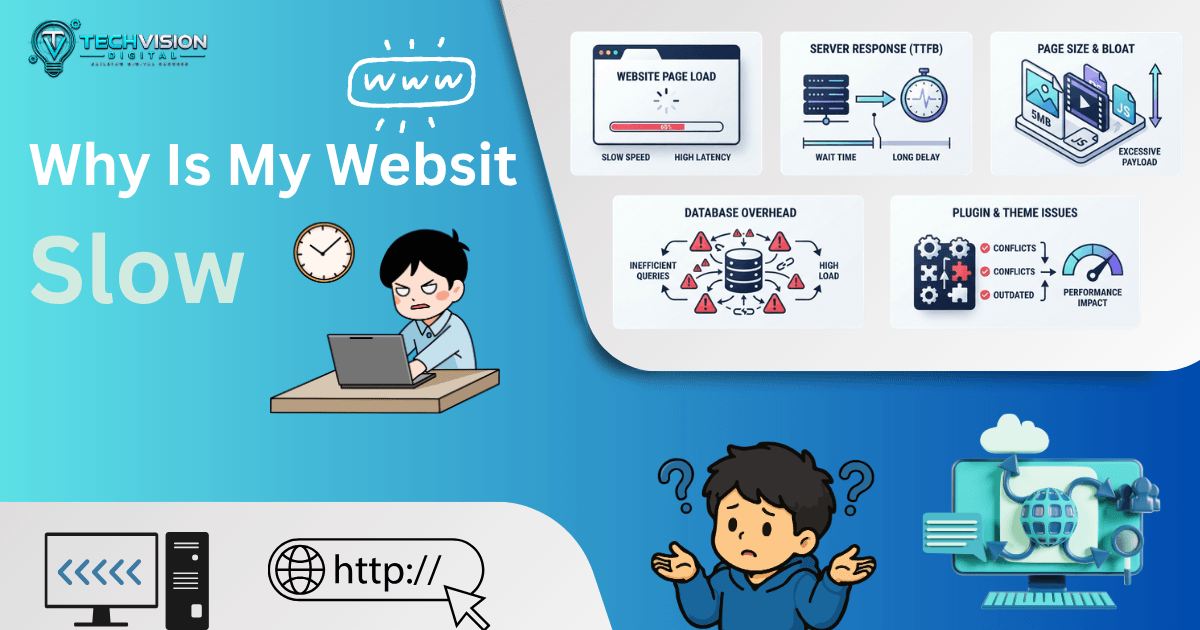

A slow website is frustrating, but the frustrating part is often figuring out why it is slow. A page may take too long to start responding because the server is struggling, or it may become usable late because the browser has too much JavaScript, CSS, imagery, or third-party code to process.
If you are asking, “why is my website slow?”, the answer is usually not a single setting.
Your hosting environment, WordPress configuration, theme, plugins, images, caching, database, and front-end code can all affect performance. WordPress’s official documentation specifically identifies factors such as hosting, server load, software versions, themes, plugins, image sizes, caching, databases, and geographic distance as performance considerations.
The first step, therefore, is not to install another optimization plugin.
It is to find the bottleneck.
1. Find Out What Is Actually Slow
Before changing anything, determine whether the problem is the server, the page itself, or the browser’s work.
A useful starting point is Google PageSpeed Insights. You can also use browser developer tools and, for sites with enough traffic, real-user performance data.
Test more than your homepage. Check:
- Your homepage
- A typical blog post
- Important service pages
- Landing pages
- Product pages if you run an online store
- Pages that visitors frequently report as slow
Different pages can have very different performance profiles.
For example, your homepage might be relatively fast while a blog template loads several large images and additional scripts. A WooCommerce product page can also behave differently from a simple informational page.
Separate Server Problems From Browser Problems
One of the most useful questions is:
Does the page take a long time to start responding, or does it start responding but take a long time to become usable?
A slow initial server response can point toward hosting, server configuration, database work, uncached requests, or other backend processing.
A page that responds quickly but remains busy can point toward JavaScript, CSS, images, fonts, or third-party scripts.
That distinction can save a lot of unnecessary trial and error.
2. Check Your Hosting and Server Response
Your hosting environment has a direct role in website performance.
WordPress documentation notes that hardware capability, server load, hosting setup, software versions, and the distance between the server and visitors can all affect performance.
If your server is consistently slow, optimizing images or minifying CSS may not solve the underlying problem.
Look for signs such as:
- Slow server response across multiple pages
- Performance that deteriorates during traffic spikes
- Limited CPU or memory resources
- Resource limits being reached
- Outdated server software
- Poorly configured caching
- Slow database responses
Shared hosting is not automatically bad. A small website with modest traffic can perform perfectly well on an appropriate shared environment.
The problem occurs when the hosting environment no longer matches the site’s workload.
Consider the Visitor’s Location
Distance can matter too.
A server located far from your primary audience can increase network latency. WordPress documentation specifically identifies geographic distance as a performance factor and notes that CDNs can help distribute static assets closer to visitors.
That does not mean you should immediately purchase a CDN or move servers.
First determine whether geographic distance is actually contributing to the problem.
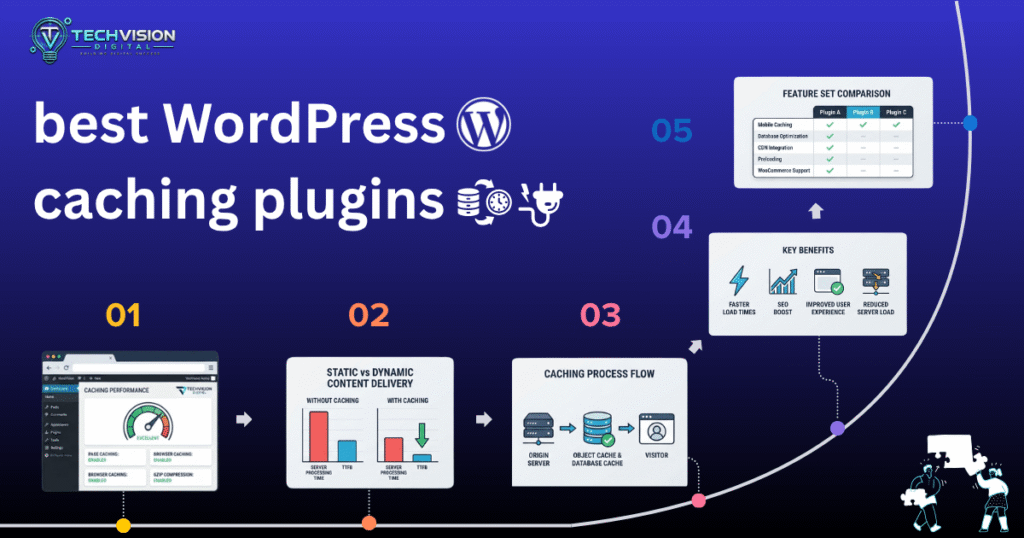
3. Check Whether Caching Is Working
Caching is one of the most useful performance mechanisms for many WordPress websites.
Without effective caching, WordPress may need to perform backend work for requests that could otherwise be served from a previously generated result.
WordPress distinguishes between several forms of caching, including page caching, browser caching, object caching, and server caching.
A page cache can store a generated version of a page so that subsequent requests can often be served without rebuilding the entire page through WordPress each time.
But caching is not simply a matter of installing a plugin and forgetting about it.
A caching configuration needs to account for the type of website you run.
A mostly static business website can often cache pages aggressively. A site with personalized content, shopping carts, logged-in users, or frequently changing information may require more careful configuration.
Don’t Stack Caching Systems Blindly
Installing several plugins that perform overlapping optimization tasks can create conflicts rather than solving the problem.
Before adding another caching tool, determine:
- What caching already exists
- Whether your host provides server-side caching
- Whether a CDN is already caching content
- Which plugin controls page caching
- Whether logged-in or dynamic pages require special handling
The goal is not to have the most caching features.
The goal is to deliver the right content efficiently.
4. Look at Your Images
Large images are one of the easiest things to overlook.
A page may look visually simple while quietly downloading several megabytes of image data.
Check whether your images are:
- Larger than their displayed dimensions
- Saved at unnecessarily high quality
- Using inefficient formats for their purpose
- Loaded before they are needed
- Missing responsive image handling
- Repeated unnecessarily across the page
WordPress’s performance documentation recommends optimizing image files and notes that modern formats such as WebP can reduce file size.
But image optimization does not mean compressing every image as aggressively as possible.
A hero image that visitors see immediately deserves different treatment from an image several screens below the fold.
The objective is to reduce unnecessary bytes while preserving acceptable visual quality.
5. Review Your Plugins
Plugins are not automatically the reason a WordPress site is slow.
The better question is:
What is each plugin actually doing?
A plugin may add:
- CSS
- JavaScript
- Database queries
- External requests
- Admin processes
- Background tasks
- Front-end widgets
WordPress’s official optimization documentation recommends deactivating and deleting unnecessary plugins and suggests selectively disabling plugins to investigate whether one is significantly affecting performance.
Do not remove a plugin simply because you have heard that “too many plugins” are bad.
Instead, identify plugins that are unnecessary, duplicated, poorly maintained, or responsible for substantial work.
If a plugin provides functionality your business genuinely needs, replacing it should be based on evidence—not on plugin count alone.
6. Check Your Theme and Page Builder
If your website is built with WordPress, the theme and page builder can also affect performance. A visually impressive website can still be slow if it loads large amounts of CSS, JavaScript, fonts, widgets, animations, or other assets that the visitor does not actually need.
This does not mean that using a page builder automatically makes a website slow. The bigger issue is usually how the website is built and what the page actually loads.
For example, a page might contain:
- Multiple animation effects
- Several sliders or carousels
- Large icon libraries
- Unused widgets
- Excessive CSS
- Multiple font families and weights
- Background videos
- Third-party elements
- Large sections that are hidden instead of removed
If only one page is slow, compare it with a simpler page on the same website. If the simpler page loads significantly faster, the problem may be related to the content, layout, widgets, or assets used on the slower page rather than your entire hosting environment.
WordPress recommends looking at the overall environment, configuration, themes, plugins, files, and server conditions rather than assuming there is one universal cause of poor performance.
A Better Approach to Page Builder Performance
Instead of removing your page builder immediately, inspect what it is generating.
Ask:
- Does this page need every widget currently loaded?
- Are unused elements still loading assets?
- Are animations necessary?
- Are there unnecessary sections or duplicated layouts?
- Are too many fonts or font weights being requested?
- Is the builder loading CSS and JavaScript that this particular page does not need?
The goal is not simply to use fewer design elements. The goal is to make every element earn its place on the page.
7. Reduce Unnecessary CSS and JavaScript
CSS controls how your website looks, while JavaScript can control interactions, animations, forms, menus, sliders, tracking, and many other features.
Both are useful. The problem starts when a page has to download, parse, and execute large amounts of code before the visitor can interact with it.
This is particularly noticeable on mobile devices, where processing resources can be more limited.
Look for unnecessary:
- JavaScript libraries
- Animation scripts
- Slider scripts
- Tracking scripts
- Widget scripts
- CSS files
- Icon libraries
- Page-builder assets
- Plugin assets loaded site-wide
A useful optimization principle is to load resources where they are actually needed rather than treating every page as if it requires the same functionality.
Watch for Render-Blocking Resources
Some CSS and JavaScript resources can interfere with the browser’s ability to render the page quickly.
That does not mean you should simply defer or remove every script identified by a speed-testing tool. Some scripts are necessary for the page to work correctly.
Instead, determine:
- What resource is delaying rendering?
- Is it actually required above the fold?
- Can it be deferred safely?
- Can unused code be removed?
- Can the resource be loaded only on relevant pages?
This is where blindly following an optimization score can create problems. A website can receive a better laboratory score while developing broken menus, delayed interactions, layout problems, or missing functionality.
Be Careful When Delaying JavaScript
Delaying JavaScript can improve initial loading in some situations, but it should be tested carefully.
A delayed script may control:
- Navigation menus
- Search
- Forms
- Shopping-cart functionality
- Login interfaces
- Sliders
- Cookie controls
- Analytics
- Other interactive components
If delaying a script breaks an important function, the optimization is not actually an improvement for the visitor.
The better question is not, “How can I delay as much JavaScript as possible?”
It is:
“Which JavaScript is necessary immediately, and which can safely wait?”
8. Check Fonts and Third-Party Scripts
Fonts are often overlooked when diagnosing a slow website.
A website may load several font families, multiple weights, icon fonts, and external font resources. Each additional resource can contribute to the amount of work the browser needs to perform.
If you only use two font weights, there may be little reason to load six.
Review your typography and remove unnecessary variations where possible.
Third-party scripts deserve even more attention because you do not completely control their performance.
Common examples include:
- Analytics
- Advertising platforms
- Chat widgets
- Social media embeds
- Video players
- Heatmap tools
- A/B testing tools
- Marketing automation
- External review widgets
A third-party service can add network requests and browser processing that your own server cannot directly optimize.
If a page contains ten different third-party services, investigate each one.
Ask:
Does this feature provide enough value to justify its performance cost?
If the answer is no, remove it.
If it is important, consider whether it can load later, only on relevant pages, or only after the visitor interacts with it.
9. Investigate Database and Backend Work
Not every slow website problem is visible in the browser.
A WordPress page can appear slow because the server is taking too long to generate the response.
This can happen when WordPress has to perform expensive database queries, process complex requests, load excessive data, or execute inefficient code.
The WordPress documentation identifies server load, database optimization, object caching, and other server-side factors as important parts of performance optimization.
This is particularly important for websites with:
- WooCommerce
- Large product catalogs
- Membership systems
- Forums
- Large databases
- Complex search functionality
- Many custom queries
- Heavy plugins
- Dynamic dashboards
If the server takes a long time before sending the initial response, adding more image compression or minifying another CSS file may not solve the real problem.
You need to investigate the backend.
Look Beyond the Homepage
The homepage is not always the best diagnostic page.
Test pages such as:
- A blog post
- A category/archive page
- A product page
- A checkout page
- A search-results page
- A page with a contact form
- A dynamically generated page
If static pages are fast but dynamic pages are slow, that difference provides an important clue.
It may indicate that the problem is related to database queries, server-side processing, plugins, APIs, or other dynamic functionality.
10. Check Mobile Performance Separately
If you are asking, “why is my website slow,” do not assume desktop performance tells the whole story.
A page that feels acceptable on a powerful desktop computer may feel noticeably slower on a mobile device.
Mobile visitors can be affected by:
- Larger images
- Heavy JavaScript
- Complex layouts
- Too many animations
- Large fonts or font files
- Third-party scripts
- Slow network conditions
- Limited device processing power
That is why responsive design should mean more than simply making desktop content fit on a smaller screen.
Check what the mobile browser actually has to download and process.
For example, if a desktop page contains a large hero video that is also loaded on mobile even though the mobile design does not really need it, the visitor may be paying the performance cost without receiving much additional value.
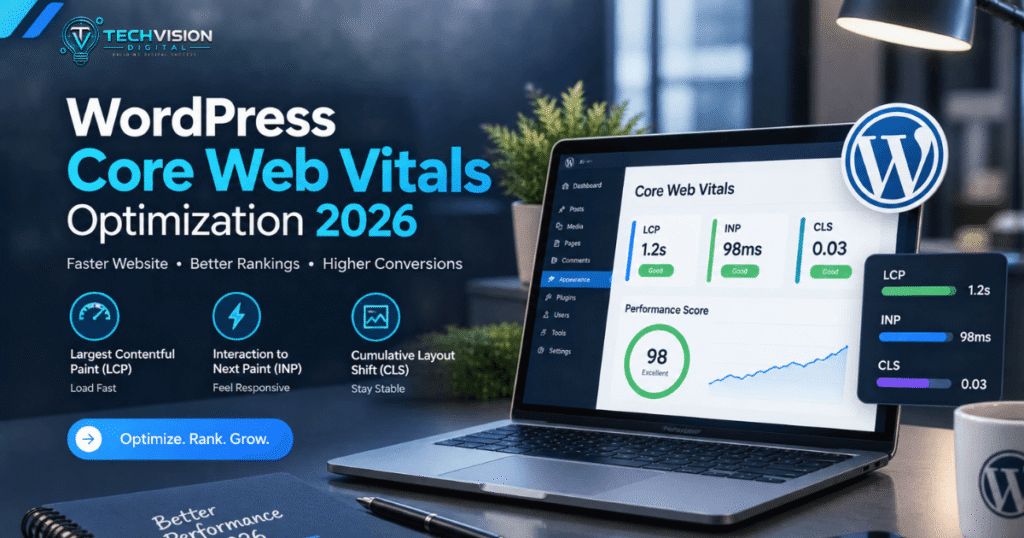
11. Understand Core Web Vitals
Core Web Vitals are useful when diagnosing website performance because they focus on real user experience rather than treating a single speed score as the entire picture.
The current Core Web Vitals focus on:
- LCP (Largest Contentful Paint): how quickly the main content becomes visible
- INP (Interaction to Next Paint): how responsive the page is to user interactions
- CLS (Cumulative Layout Shift): how stable the page layout is while loading
Google’s current documentation identifies these as the Core Web Vitals used to evaluate important aspects of loading, interactivity, and visual stability.
This matters because a website can have a relatively low total page size but still provide a poor experience.
For example:
- The main content may appear too late.
- A button may take too long to respond.
- Images may suddenly push text downward.
- A large script may consume the browser’s processing time.
- The server may take too long to start delivering the page.
So when someone asks, “why is my website slow,” the answer should not simply be a PageSpeed score.
You need to understand which part of the experience is slow and why.
Don’t Chase a Perfect Score
Performance testing tools are valuable diagnostic tools, but a score should not become the sole objective.
A technically fast website that has broken navigation, delayed forms, missing images, or poor usability is not a successful optimization.
The better goal is to create a website that:
- Responds quickly
- Displays important content promptly
- Remains visually stable
- Works properly on mobile
- Keeps interactions responsive
- Delivers only the resources users actually need
That is a much more useful definition of website speed than simply reaching a particular testing score.
12. Use a CDN When It Makes Sense
A content delivery network (CDN) can help deliver static website resources from servers that are geographically closer to visitors.
This can be useful when your website serves visitors across different regions. Instead of every visitor having to retrieve static assets from one origin server, a CDN can cache and serve eligible resources from a distributed network.
A CDN can be particularly useful for:
- Images
- CSS files
- JavaScript files
- Fonts
- Other static assets
However, a CDN is not a universal solution to a slow website.
If your origin server is overloaded, your database is inefficient, your page contains excessive JavaScript, or your images are unnecessarily large, putting a CDN in front of the website does not automatically fix those underlying problems.
Think of a CDN as one layer of a performance strategy, not a substitute for diagnosing the website.
WordPress documentation also identifies CDN usage, caching, compression, and server-side optimization among the techniques that can contribute to better performance.
13. Use a Simple Troubleshooting Workflow
If you are still asking, “why is my website slow,” don’t change ten things at once.
That makes troubleshooting much harder because you will not know which change actually solved the problem.
Instead, use a structured process.
Step 1: Test the Page
Choose the specific URL that feels slow.
Do not test only the homepage if the actual problem occurs on a product page, blog post, checkout page, or another section.
Step 2: Test More Than Once
Performance can vary because of network conditions, server load, caching state, and other variables.
Look for patterns rather than treating one test as absolute truth.
Step 3: Compare Different Pages
Test a simple page and a complex page.
If both are slow, investigate hosting, server response, caching, and broader configuration.
If only one page is slow, inspect its images, scripts, widgets, embeds, queries, and page-specific functionality.
Step 4: Separate Server and Browser Problems
If the server takes a long time to begin responding, investigate the hosting environment, server processing, database work, caching, and backend functionality.
If the response arrives quickly but the page takes a long time to become usable, investigate front-end resources such as JavaScript, CSS, images, fonts, and third-party scripts.
Step 5: Check Mobile
Repeat the investigation for mobile visitors.
A problem that is barely noticeable on desktop can become much more obvious on a phone.
Step 6: Change One Major Variable at a Time
For example:
- Improve image delivery.
- Test again.
- Review unnecessary plugins.
- Test again.
- Investigate JavaScript.
- Test again.
- Review caching.
- Test again.
This creates a much clearer cause-and-effect relationship.
Step 7: Verify Functionality
After every significant optimization, check:
- Navigation
- Forms
- Buttons
- Search
- Login
- Shopping cart
- Checkout
- Menus
- Popups
- Tracking
- Mobile layouts
A faster test result is not useful if an important part of the website no longer works.
14. Avoid Common Speed-Fixing Mistakes
Many website owners make their websites harder to troubleshoot by optimizing without first identifying the bottleneck.
Installing Too Many Optimization Plugins
More optimization plugins do not automatically mean better performance.
Multiple plugins can overlap in areas such as caching, minification, lazy loading, image optimization, JavaScript handling, and database cleanup.
That can create conflicts or make it difficult to determine which setting is responsible for a problem.
WordPress specifically distinguishes between different caching layers, including page, browser, object, and server caching.
The better approach is to understand which layer you are optimizing before adding another tool.
Optimizing Everything at Once
If you activate every available optimization setting simultaneously, you may improve something—or you may break something.
A diagnosis-first process is safer.
Chasing a 100/100 Score
A perfect laboratory score is not the same thing as a perfect user experience.
Real visitors use different devices, browsers, connections, and geographic locations.
Performance should therefore be evaluated using multiple signals rather than one number.
Removing Important Functionality Just for Speed
Removing a useful checkout feature, search function, accessibility component, analytics requirement, or customer-support tool simply because it adds some overhead may not be the right tradeoff.
Performance optimization is about balancing speed, functionality, usability, maintainability, and business requirements.
Assuming Good Hosting Fixes Everything
High-quality hosting can help, but it cannot compensate for an unnecessarily heavy website.
Likewise, excellent front-end optimization cannot completely solve an overloaded or poorly configured server.
The fastest websites usually address both sides.
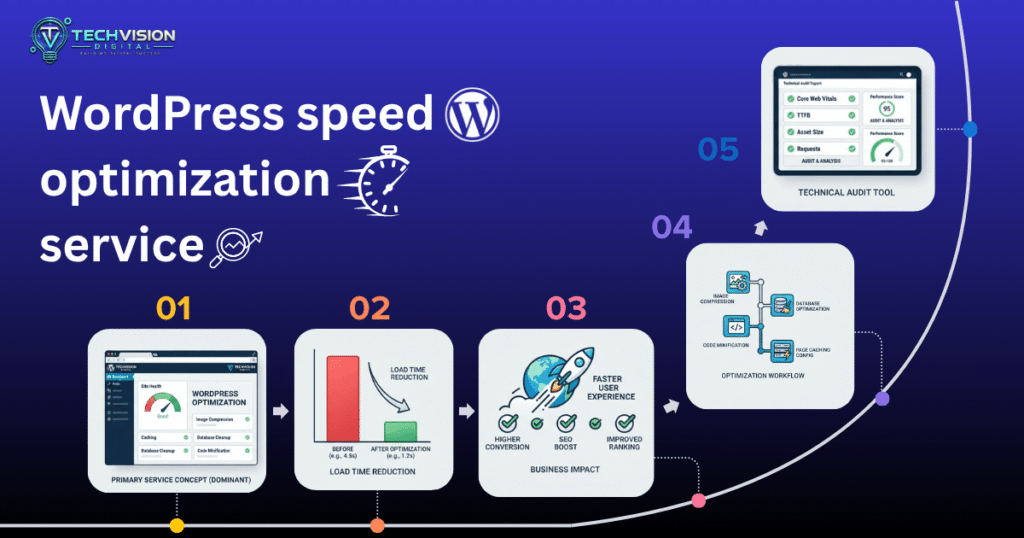
15. When Professional Website Speed Optimization Makes Sense
Some performance problems are straightforward.
Compressing an oversized image or removing an unnecessary plugin may be enough.
Other problems require deeper investigation.
Consider professional performance work when:
- Your website remains slow after basic optimization.
- Server response is consistently poor.
- WooCommerce pages are taking too long to load.
- You have a large number of plugins or complex integrations.
- JavaScript conflicts are difficult to identify.
- Database queries appear to be a bottleneck.
- Caching behaves inconsistently.
- Mobile performance is significantly worse than desktop.
- Performance problems return after temporary improvements.
- You need optimization without breaking existing functionality.
The advantage of professional optimization is not simply knowing which settings to switch on.
It is knowing what not to change, identifying the actual bottleneck, measuring the effect of each change, and protecting the functionality of the website while improving its performance.
For a WordPress business website or eCommerce store, this can involve reviewing the hosting environment, caching architecture, plugins, theme/page-builder output, database behavior, images, scripts, fonts, third-party services, and Core Web Vitals together.
Frequently Asked Questions
Why is my website slow even though I have good hosting?
Good hosting can reduce server-side bottlenecks, but it does not automatically optimize images, JavaScript, CSS, plugins, fonts, third-party scripts, or database queries. If the website itself is heavy, it can remain slow even on a strong hosting plan.
Why is my WordPress website slow?
Common causes include poor server response, ineffective caching, oversized images, inefficient plugins, heavy themes or page-builder output, excessive JavaScript and CSS, database-related work, and third-party services. The exact cause needs to be diagnosed rather than assumed.
Why is my website slow on mobile?
Mobile performance can be affected by large images, complex layouts, heavy JavaScript, animations, third-party scripts, fonts, and device processing limitations. A website should therefore be tested on mobile separately instead of assuming desktop results represent the mobile experience.
Can plugins make a website slow?
They can. A plugin may add CSS, JavaScript, database queries, external requests, or background processing. However, simply having many plugins does not automatically mean a website is slow. What each plugin loads and does matters more than the raw plugin count.
Does caching make a website faster?
Caching can significantly reduce repeated work by serving previously generated or stored resources instead of rebuilding them every time. WordPress supports several caching approaches, including page, browser, object, and server caching.
Does a CDN fix a slow website?
A CDN can improve delivery of static resources, particularly for geographically distributed visitors, but it does not fix every performance problem. Server processing, database work, large assets, JavaScript, and other bottlenecks may still need attention.
Is a high PageSpeed score enough?
No. A testing score is useful for diagnosis, but it should not be treated as the entire definition of website performance. Real user experience, functionality, responsiveness, visual stability, and loading behavior all matter.
How do I find out what is slowing down my website?
Start by testing the specific slow page, comparing different pages, checking server response, reviewing images and network resources, inspecting JavaScript and CSS, checking plugins and third-party scripts, and comparing mobile and desktop behavior. Then change one major variable at a time and retest.
Final Takeaway
If you keep asking, “why is my website slow,” the most important step is to stop treating website speed as a single number.
A slow website can have a slow server, oversized images, ineffective caching, unnecessary code, inefficient plugins, database bottlenecks, third-party scripts, or a combination of several problems.
The right solution is therefore diagnosis first, optimization second.
Test the actual page. Identify where the delay occurs. Fix the biggest bottleneck first. Retest. Then move to the next issue.
That approach is more reliable than installing optimization tools randomly or chasing a perfect performance score.
If your WordPress website needs deeper performance work, TechVision Digital can help identify and address the technical bottlenecks while keeping the website’s functionality and user experience intact.