
Choosing among the best WordPress caching plugins is not as simple as picking the one with the highest speed score or the most features. The right choice depends on your hosting environment, website type, technical experience, and the other performance tools already running on your site. A plugin that works extremely well on a LiteSpeed server may not be the best fit for a site running on a different stack, while an advanced caching system can create unnecessary complexity for a small business website.
The goal, therefore, is not to find one universal winner. It is to find the caching setup that fits your WordPress site without introducing new performance or compatibility problems.
What Does a WordPress Caching Plugin Actually Do?
Caching reduces the amount of work WordPress has to perform for repeated requests.
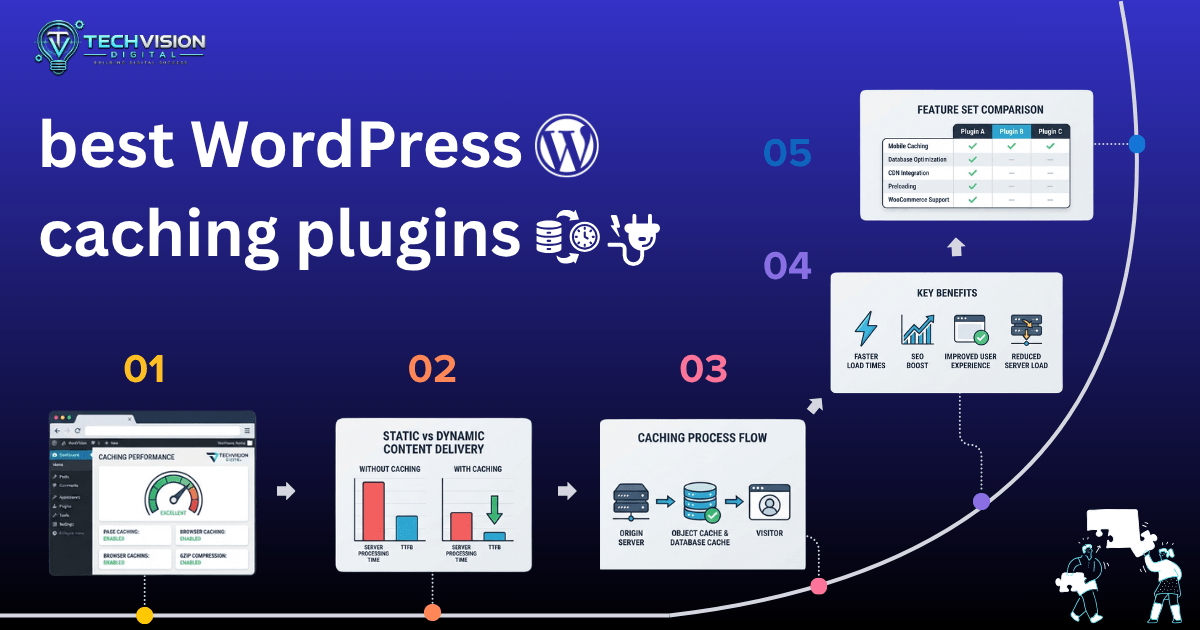
Without page caching, a typical request may require WordPress to load PHP, execute plugins and theme code, query the database, generate the page, and then send the resulting HTML to the visitor. With page caching, a previously generated version of the page can often be served without repeating all of that processing.
WordPress documentation describes caching as a way to serve static versions of posts and pages, reducing server processing. It also distinguishes several caching layers, including browser, object, and server caching.
That distinction matters because a “cache plugin” can do much more than store HTML pages.
Depending on the plugin and hosting environment, you may encounter:
- Page or full-page caching
- Browser caching
- Object caching
- Database optimization
- CSS and JavaScript optimization
- Image optimization
- Lazy loading
- CDN integration
- Cache preloading
- Cache exclusions
- Critical CSS or unused CSS controls
These features can be useful, but more features do not automatically mean better performance.
A simple business website may benefit from a straightforward configuration. A large WooCommerce store, membership site, or highly dynamic application requires much more careful cache rules.
The Most Important Question: What Hosting Server Are You Using?
Before comparing plugins, check your hosting environment.
This is one of the easiest details to overlook and one of the most important when choosing a caching solution.
If Your Host Uses LiteSpeed
LiteSpeed Cache becomes particularly interesting because it can communicate with LiteSpeed’s caching infrastructure rather than functioning only as a conventional PHP-based page-cache plugin.
That can make it a strong choice when the hosting environment is designed around LiteSpeed.
The key point is that LiteSpeed Cache’s biggest advantage is tied to the server environment. Installing it on a completely different hosting stack does not automatically reproduce the same architecture or performance characteristics.
If Your Host Uses Apache or Nginx
You have a wider range of choices.
Premium options such as WP Rocket or FlyingPress may appeal to site owners who want guided performance optimization, while W3 Total Cache and other free plugins can provide more configuration flexibility.
The best decision depends on what you actually need.
If your main requirement is reliable page caching with minimal configuration, a simpler solution may be preferable to a plugin containing dozens of settings that you never intend to touch.
Why There Is No Universal “Fastest” WordPress Cache Plugin
A caching plugin does not operate in isolation.
Your final performance depends on the interaction between:
- Web server
- Hosting resources
- PHP version and configuration
- WordPress theme
- Plugins
- Database
- Images
- CSS and JavaScript
- CDN
- Cache configuration
- Dynamic content
- Visitor location
- Mobile device conditions
That is why performance claims such as “this plugin makes every WordPress site faster” should be treated cautiously.
A plugin can improve one bottleneck while doing very little for another.
For example, if your biggest problem is a 4 MB hero image, changing page-cache plugins may have little effect on the actual cause. Likewise, if a page contains a large amount of JavaScript that delays interaction, simply enabling page caching does not automatically solve the front-end problem.
Caching is a performance tool—not a substitute for diagnosing the website.
The Best WordPress Caching Plugins for Different Situations
Rather than treating every plugin as interchangeable, it is more useful to match the caching solution to the website and hosting environment.
Here are the major options worth considering.
LiteSpeed Cache
LiteSpeed Cache is one of the strongest choices when the website is hosted on a LiteSpeed-powered server.
Its appeal goes beyond basic page caching. The plugin can work with LiteSpeed’s server-level caching capabilities and includes a broad collection of performance features.
It can be particularly attractive for:
- Business websites
- Content-heavy WordPress sites
- WooCommerce stores
- Websites already hosted on LiteSpeed
- Users who want extensive optimization controls
The downside is complexity. LiteSpeed Cache exposes a large number of settings, and enabling every optimization option without testing can create problems with themes, JavaScript, CSS, or dynamic functionality.
If your host uses LiteSpeed, however, it should usually be one of the first options you evaluate.
WP Rocket
WP Rocket is designed around ease of use and a relatively guided optimization experience.
It is often considered by site owners who want caching and performance features without spending hours learning every cache configuration.
It can be a good fit for:
- Small-business websites
- Agency websites
- Blogs
- Marketing websites
- Users who prefer simpler configuration
Its main advantage is not that it magically makes every website faster. The value is in combining caching and several performance optimizations into a workflow that is easier for many WordPress users to manage.
As with any optimization plugin, individual features should still be tested rather than enabled blindly.
FlyingPress
FlyingPress is another premium option aimed at WordPress performance optimization.
It focuses heavily on improving the delivery of pages and front-end assets, with features designed around practical performance optimization rather than caching alone.
It may make sense for site owners who want a more advanced performance toolkit but prefer a focused interface.
The important consideration is overlap. If your hosting provider already supplies aggressive caching, CDN functionality, or optimization features, adding another layer can produce redundant processing or conflicts.
W3 Total Cache
W3 Total Cache has been around for years and provides extensive configuration options.
It can support multiple caching mechanisms and gives technically experienced users considerable control.
That flexibility is also its biggest drawback.
For a developer who understands caching layers, database behavior, CDN configuration, and cache policies, the control can be valuable. For a beginner who simply wants to make a site faster, the number of settings can become overwhelming.
More configuration does not necessarily produce better results.
WP Super Cache
WP Super Cache is a long-established option for WordPress users who want straightforward page caching.
Its simpler approach can make it suitable for basic websites where the primary requirement is reliable page caching rather than an extensive collection of performance features.
It can be worth considering when you want a lightweight approach and do not need an all-in-one optimization suite.
Which WordPress Caching Plugin Should You Choose?
A practical decision framework looks something like this:
| Your situation | Strong starting point |
| LiteSpeed hosting | LiteSpeed Cache |
| Simple business website | WP Rocket or another straightforward cache solution |
| Advanced performance control | FlyingPress or W3 Total Cache |
| Basic free page caching | WP Super Cache |
| WooCommerce website | Depends heavily on hosting and dynamic-content requirements |
These are starting points, not universal rankings.
For example, a WooCommerce store should not select a plugin simply because it scores highly in a generic benchmark. Cart, checkout, account, and other personalized areas require careful caching behavior.
The same principle applies to membership websites, learning platforms, forums, and other sites where visitors see different content.
Free vs. Premium WordPress Caching Plugins
You do not necessarily need a paid caching plugin to improve WordPress performance.
Free options can provide effective page caching, and some hosting companies provide server-level caching that reduces the need for additional software.
Premium plugins can become attractive when you want:
- A simpler setup
- More integrated optimization features
- Easier maintenance
- Additional performance controls
- Better workflows for managing multiple websites
The decision should therefore be based on what problem you are trying to solve, not on whether a plugin has a premium label.
If your host already provides excellent server-side caching, paying for another plugin primarily to obtain basic page caching may provide limited additional value.
Can You Use Two WordPress Caching Plugins?
In most cases, you should not install multiple plugins that perform the same caching functions simply because you expect their benefits to stack.
Two optimization systems may attempt to modify the same CSS, JavaScript, HTML, database, or cache layers.
That can lead to:
- Cache conflicts
- Broken layouts
- JavaScript errors
- Stale content
- Difficult troubleshooting
- Duplicate optimization
- Unexpected behavior after updates
A better approach is to identify which caching layer your hosting provider already supplies and then choose a complementary solution.
You may still use separate tools for different jobs—for example, a dedicated image optimization service alongside a caching system—but each tool should have a clearly defined responsibility.
Caching Alone Does Not Fix Every Speed Problem
This is where many WordPress performance projects go wrong.
A site can have excellent page caching and still feel slow.
Consider a homepage containing:
- A large uncompressed hero image
- Several third-party tracking scripts
- Multiple web fonts
- Heavy page-builder assets
- Unused CSS
- Video backgrounds
- Poorly optimized database queries
Caching may reduce server processing, but it does not automatically eliminate those front-end bottlenecks.
A better optimization process starts with measurement and diagnosis.
Check the site’s server response, page weight, image sizes, JavaScript execution, CSS delivery, Core Web Vitals, and hosting performance before changing multiple settings at once.
That approach also makes troubleshooting easier because you can identify which change actually produced an improvement.
How to Choose a WordPress Caching Plugin
If you are still unsure which option fits your website, use this order of priorities.
1. Check Your Hosting Stack
Start with your hosting provider.
Find out whether your server uses LiteSpeed, Apache, Nginx, or a managed WordPress platform with its own caching system.
This matters because WordPress performance depends partly on your hosting environment, not just the caching plugin installed on your website. WordPress’s performance documentation identifies hosting as an important factor in overall site performance.
If your host already provides full-page caching, check whether you actually need another page-cache layer. Running multiple systems that cache the same content can create conflicts or make troubleshooting more difficult.
This is also one of the most important factors when comparing the best WordPress caching plugins. A plugin that works particularly well with one hosting stack may not provide the same advantages on another.
2. Identify Your Website Type
A simple brochure website has different caching requirements from a WooCommerce store.
For example:
Business website: prioritize reliable caching, ease of configuration, and compatibility.
Blog or publication: page caching and efficient delivery of static assets may provide substantial benefits.
WooCommerce store: pay particular attention to cart, checkout, account, and personalized content.
Membership website: aggressive page caching can be problematic if users receive personalized content.
High-traffic website: server-level caching, persistent object caching, CDN delivery, and infrastructure may matter as much as the WordPress plugin itself.
3. Look at What Your Host Already Provides
Before installing anything, check your hosting control panel and ask:
- Is page caching already enabled?
- Does the host provide a CDN?
- Is Redis or another persistent object cache available?
- Does the host have its own WordPress optimization system?
- Is there server-level cache management?
WordPress distinguishes page caching from persistent object caching and opcode caching, so these should not be treated as identical technologies. (WordPress Developer Resources)
This is particularly important when a hosting provider already handles part of the performance stack.
4. Start With a Small Configuration
One of the most common mistakes is enabling every optimization feature immediately.
A better process is:
- Back up the website.
- Measure the current performance.
- Install or configure one caching solution.
- Enable the basic caching functionality.
- Clear the cache.
- Test the website.
- Measure again.
- Enable additional optimizations individually when appropriate.
This makes problems much easier to identify.
If enabling JavaScript delay suddenly breaks a menu, for example, you have a much clearer idea of what caused the problem than you would after activating 20 optimization settings simultaneously.
What About WooCommerce?
WooCommerce and WordPress Caching Plugins
WooCommerce requires more caution than a typical content website because parts of the store can be personalized or change based on the visitor’s activity. This is one reason the best WordPress caching plugins for a simple business site may not be the best choice for an online store.
You should never assume that aggressive caching is safe simply because it improves a homepage benchmark. A WooCommerce site needs to balance performance with correct cart, checkout, account, and product functionality.
Before considering a caching setup ready for production, test:
- Product pages
- Cart
- Checkout
- My Account
- Login and logout behavior
- Product filters
- Product search
- Coupons
- Shipping calculations
- Payment flows
The exact cache exclusions depend on the caching plugin, hosting environment, WooCommerce configuration, and other plugins installed on the store.
For this reason, when comparing the best WordPress caching plugins for WooCommerce, prioritize compatibility and control over a generic speed score. A slightly more conservative caching configuration is often preferable to one that produces a faster test result but interferes with an important part of the purchasing process.
For an online store, correct behavior comes before squeezing out another small performance improvement.
A broken checkout is far more damaging than a slightly slower page.
Common WordPress Caching Mistakes
Installing a second cache without checking the existing one
Your hosting provider may already have page caching or CDN caching enabled.
Adding another system without understanding the architecture can make troubleshooting considerably harder.
Assuming caching fixes every Core Web Vital
Caching can improve server-side performance, but it does not automatically optimize every element affecting LCP, INP, or CLS.
Images, JavaScript, CSS, fonts, third-party scripts, theme architecture, and hosting can all influence the final experience.
Enabling every optimization option
Minification, combination, deferred JavaScript, unused CSS removal, lazy loading, and other features can interact with themes and plugins.
Test changes individually when possible.
Never clearing or warming the cache after changes
A cached version can continue serving an older page after you make an update.
A sensible cache workflow should account for cache clearing and, where supported, cache preloading.
Choosing based entirely on a benchmark
Benchmarks can be useful for comparison, but a benchmark is not your website.
A plugin that wins one test environment may not produce the same result on your server, theme, plugins, content, or visitor network.
What Should You Do If Your WordPress Site Is Still Slow?
If you install a suitable caching plugin and the site remains slow, don’t immediately install another cache plugin.
Diagnose the remaining bottleneck.
Check:
- Server response time
- Page size
- Image dimensions and compression
- JavaScript execution
- CSS delivery
- Third-party scripts
- Plugin overhead
- Database performance
- Persistent object caching
- CDN configuration
- Mobile performance
- Theme and page-builder output
WordPress’s own optimization guidance emphasizes that hosting, plugins, themes, images, database behavior, and other infrastructure factors can all affect performance.
This is why professional WordPress speed optimization is usually a diagnostic process rather than simply installing a plugin.
Frequently Asked Questions
Which is the best WordPress caching plugin?
There is no single plugin that is best for every WordPress website. LiteSpeed Cache is a strong starting point for LiteSpeed hosting, while other sites may be better served by solutions such as WP Rocket, FlyingPress, W3 Total Cache, or WP Super Cache depending on their requirements.
Is a paid WordPress caching plugin worth it?
It can be, particularly when you value easier configuration, integrated optimization features, and ongoing maintenance. But a paid plugin is not automatically faster than a free solution, especially when your hosting provider already supplies server-level caching.
Can I use two caching plugins?
Generally, avoid running two plugins that perform the same caching or optimization functions. If multiple performance tools are necessary, make sure each has a clearly defined role and test for conflicts.
Should WooCommerce sites use caching?
Yes, but caching must be configured carefully. Static product and content pages may be cached, while personalized and transactional areas require appropriate exclusions or dynamic handling.
Does a caching plugin guarantee better Core Web Vitals?
No. Caching can address some performance bottlenecks, but Core Web Vitals are influenced by many factors. A proper diagnosis is necessary before deciding which optimizations will help.
Conclusion
The best WordPress caching plugin is not necessarily the one with the longest feature list or the highest score in somebody else’s benchmark.
The better question is: which caching system fits your hosting environment, website architecture, and performance problem?
If you use LiteSpeed hosting, LiteSpeed Cache deserves serious consideration. If you prioritize a guided setup, a premium plugin such as WP Rocket or FlyingPress may be more appealing. If you want extensive technical control, W3 Total Cache can be worth evaluating. For straightforward page caching, WP Super Cache remains an option.
But the plugin is only one part of the performance equation.
Start with your hosting environment, identify the actual bottleneck, make changes gradually, and test the website after each major optimization. That approach is much more reliable than continuously adding plugins and hoping that each one makes the site faster.
If your WordPress website is still slow after caching is configured correctly, the next step may be to investigate the underlying hosting, theme, plugin, image, JavaScript, database, or CDN issues rather than replacing the cache plugin again.
Need help diagnosing a slow WordPress website? TechVision Digital can help evaluate the site’s performance and identify practical optimization opportunities without treating a caching plugin as a one-size-fits-all solution.