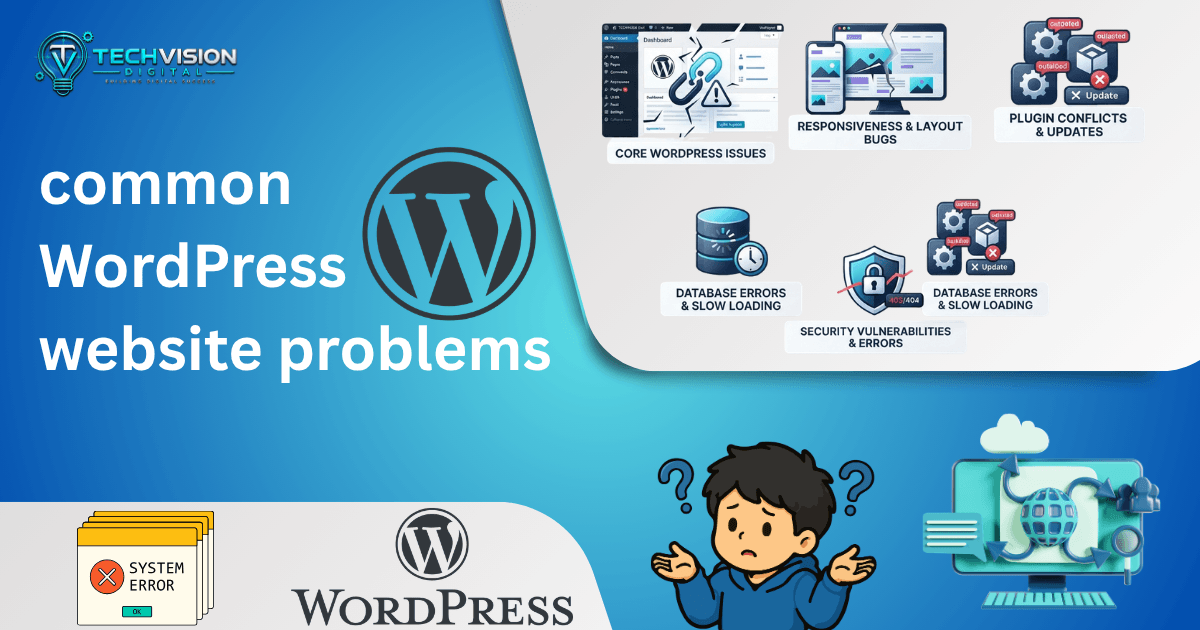

WordPress is flexible enough to power everything from a small business website to a large online store, but that flexibility also means there are many places where something can go wrong. Common WordPress website problems can come from plugins, themes, hosting, configuration, updates, databases, custom code, or simple caching issues. The difficult part is often not finding a possible fix—it is figuring out which fix actually applies to your situation.
The safest approach is to diagnose the problem before changing several things at once. That gives you a better chance of finding the real cause and makes it easier to undo a change if something gets worse.
1. WordPress Website Suddenly Stops Working
One of the most alarming situations is opening your website and finding a blank page, a critical error message, a server error, or a completely inaccessible site.
That does not necessarily mean your website or its content is permanently lost.
WordPress identifies several possible causes for major failures, including incompatible plugins or themes, PHP problems, memory limitations, corrupted files, and database issues.
The first step is to identify what changed immediately before the problem appeared.
For example:
- Did you update a plugin?
- Did you activate a new theme?
- Did you change custom PHP code?
- Did your hosting provider make a server change?
- Did WordPress update automatically?
- Did the problem appear after changing a configuration setting?
This timeline can be more useful than immediately installing another troubleshooting plugin.
The WordPress Critical Error
If WordPress displays a message saying there has been a critical error, the message itself may not identify the exact cause.
WordPress Recovery Mode can sometimes allow an administrator to access the dashboard when a fatal error has prevented normal operation. WordPress explains that fatal errors can commonly originate from plugins, themes, or custom code.
If Recovery Mode is available, use it to investigate the reported problem rather than immediately making unrelated changes.
If you cannot access the dashboard, server error logs or WordPress debugging information may provide more useful clues.
2. The White Screen of Death
A completely blank WordPress page is commonly called the White Screen of Death.
It can be especially confusing because there may be no visible explanation for what went wrong.
According to WordPress documentation, PHP and database errors can produce a blank screen, with plugin and theme compatibility among the possible causes.
A sensible troubleshooting sequence is:
- Identify whether the problem affects the entire website or only one page.
- Think about what changed immediately before the failure.
- Check whether WordPress sent an administrator recovery email.
- If you have dashboard access, investigate recently changed plugins or themes.
- If the dashboard is inaccessible, use your hosting tools or another safe method to isolate the suspected component.
- Check error logs rather than guessing.
Deactivating every plugin can sometimes help isolate a conflict, but it should be treated as a diagnostic step—not a permanent solution.
WordPress’s troubleshooting guidance specifically recommends deactivating plugins individually or switching themes when investigating certain failures.
3. Plugins Conflict With Each Other
Plugins are one of WordPress’s biggest strengths, but they can also introduce compatibility problems.
A plugin may work perfectly on its own while conflicting with another plugin, the active theme, custom code, or the current WordPress environment.
Symptoms can include:
- A page suddenly stops loading
- A form stops submitting
- The WordPress dashboard behaves strangely
- A layout breaks
- A feature disappears
- A critical error appears
- The website becomes unusually slow
The important point is that the newest plugin is not automatically the guilty one.
A conflict may only become visible after an update to a different component.
A useful diagnostic method is to reproduce the problem, temporarily isolate plugins, and reactivate them systematically until the conflict becomes apparent. WordPress’s own troubleshooting resources describe this approach for identifying plugin-related failures.
Do not randomly delete plugins just because the website is broken. If a plugin contains important configuration or data, removing it may create another problem.
4. WordPress Website Is Slow
A slow website is one of the most common WordPress problems, but “WordPress is slow” is not a diagnosis. The underlying cause could be oversized images, inefficient plugins, poor hosting resources, excessive scripts, database overhead, missing caching, or a page that is simply doing too much work.
Start by determining where the slowdown occurs.
If every page is slow, investigate hosting, server response time, plugins, themes, database activity, and site-wide scripts.
If only one page is slow, inspect what is unique to that page. A large image gallery, embedded video, complex page-builder layout, third-party script, or dynamic feature may be responsible.
Avoid installing several optimization plugins at once. Two plugins attempting to perform the same caching, minification, image optimization, or database cleanup tasks can create conflicts instead of solving the problem.
A better process is to measure first, identify the largest bottleneck, make one meaningful change, and test again.
Large Images Can Create a Surprisingly Large Problem
Images are often overlooked because the website still technically works.
A page can appear simple while loading several megabytes of images in the background. Reducing unnecessary image dimensions and using appropriate modern formats can improve loading efficiency without requiring a complete redesign.
The goal is not to make every image as small as possible. A product image, hero image, logo, and thumbnail have different requirements.
The right question is:
What image dimensions and quality does this specific location actually need?
That approach avoids both extremes—huge files that slow the page down and aggressively compressed images that look poor.
5. The WordPress Layout Is Broken
Another common problem occurs when a website looks correct in the WordPress editor but appears broken on the live page.
You may notice:
- Text overlapping another section
- Images extending beyond the screen
- Unexpected horizontal scrolling
- Columns stacking incorrectly
- Buttons moving to strange positions
- Large empty spaces
- Mobile or tablet layouts behaving differently
- Sections appearing wider than the viewport
Responsive problems can be caused by CSS, theme settings, page builders, containers, fixed widths, margins, padding, positioning, or third-party widgets.
This is especially important when using a visual builder. Changing one responsive setting can affect several nested elements.
Instead of immediately adding more CSS, inspect the element hierarchy first.
Ask:
- What is controlling the width of the section?
- Does a child element have a fixed width?
- Is an element positioned absolutely?
- Are margins pushing content outside its parent?
- Is a minimum width preventing the layout from shrinking?
- Is custom CSS overriding the builder’s responsive settings?
A useful troubleshooting habit is to test the page at several viewport sizes rather than checking only the device you currently have.
A layout that looks fine at 1440px may still break at 1280px, 1024px, or another intermediate width.
6. WordPress Shows a 404 Error
A 404 error means the requested resource could not be found at that URL.
In WordPress, this can happen after changing permalink settings, moving content, deleting a page, changing a URL, or introducing a server configuration problem.
One common WordPress troubleshooting step is to revisit the permalink settings and save them again without necessarily changing the structure. WordPress documentation includes permalink-related troubleshooting among its common-error guidance.
But not every 404 should be “fixed” by changing permalinks.
First determine whether:
- One URL is affected
- Several URLs are affected
- Only a category or archive is affected
- The homepage works but internal pages fail
- Old URLs are returning 404s
- The problem occurs after migration or hosting changes
If an old page has been permanently replaced by another relevant URL, a proper redirect may be more appropriate than trying to force the old URL to work.
This is where troubleshooting and SEO overlap. Fixing the technical issue should not accidentally create a confusing URL structure or redirect chain.
7. WordPress Cannot Connect to the Database
A database connection error is more serious than a broken visual element because WordPress relies on its database for much of the site’s content and configuration.
Potential causes include incorrect database credentials, database-server problems, corrupted data, hosting issues, or configuration changes.
WordPress specifically documents “Error Establishing Database Connection” as a common WordPress error.
If this appears unexpectedly, do not immediately edit database configuration files unless you understand exactly what you are changing.
Check whether your hosting environment is experiencing an outage or database-service problem first.
If you recently migrated the site, changed hosting, or modified database credentials, those events become especially relevant.
Database problems can also affect more than the front end. The WordPress dashboard may become unavailable, and actions that depend on database access may fail.
8. A WordPress Update Breaks Something
Keeping WordPress, themes, plugins, and server software reasonably current is an important part of website maintenance. But updates can sometimes expose compatibility problems.
For example, an update may reveal that:
- A plugin depends on outdated code
- A theme contains incompatible customizations
- Custom PHP code relies on behavior that has changed
- Two components are no longer compatible
- A third-party integration needs an update
That does not mean WordPress updates should be avoided.
Instead, updates should be managed carefully.
Before significant changes, maintain a reliable backup and, when appropriate, test updates in a staging environment. This makes it easier to distinguish an update-related compatibility issue from an unrelated problem that happened at the same time.
WordPress also provides Recovery Mode specifically to help administrators troubleshoot fatal errors that prevent normal operation.
9. WordPress Admin Login Stops Working
Sometimes the public website works while the /wp-admin area does not.
The symptoms can vary:
- Incorrect password messages
- Login page refreshing without logging in
- Redirect loops
- A blank dashboard
- A 403 or 500 error
- Login followed immediately by logout
The cause may be a plugin, security configuration, cookies, caching, server rules, or authentication-related code.
Before making complicated changes, verify the basics: correct credentials, browser cookies, recent plugin changes, security settings, and whether the problem occurs in another browser.
If only one browser is affected, that is an important clue.
If every administrator is affected simultaneously, the problem is more likely to involve the WordPress installation, server, authentication system, or a recent configuration change.
10. Use WordPress Site Health Before Guessing
WordPress includes a Site Health area designed to provide information about the site’s configuration and potential issues.
It can surface information related to the WordPress environment, active components, server configuration, and recommended improvements, making it a useful starting point when diagnosing common WordPress website problems. WordPress’s documentation explains that Site Health provides status and information screens to help administrators understand the condition of a site.
It should not replace proper debugging, but it is a useful starting point.
When troubleshooting, gather evidence before making changes:
- What exactly is failing?
- When did it begin?
- What changed beforehand?
- Does the problem affect all visitors?
- Does it affect every page?
- Does it happen on desktop and mobile?
- Can another administrator reproduce it?
- Are there relevant error messages or logs?
That information dramatically narrows the number of possible causes.
11. When You Should Stop Troubleshooting Yourself
Not every WordPress problem requires a developer.
A simple plugin conflict or minor configuration mistake may be manageable if you understand the change you are making.
Professional help becomes more appropriate when the issue involves:
- A live business website that is down
- A database failure
- Repeated critical errors
- Server configuration
- Custom PHP or JavaScript
- Security compromises
- A failed migration
- Data loss
- Complex WooCommerce functionality
- Problems that keep returning after temporary fixes
The key distinction is risk.
If a troubleshooting step could permanently remove data, alter a production database, break custom functionality, or make recovery more difficult, stop experimenting on the live website. These precautions are especially important when dealing with common WordPress website problems, where an incorrect fix can sometimes create additional issues.
A good developer should not simply make the error disappear. They should identify the underlying cause of the common WordPress website problems and reduce the chance of the same problem returning.
How to Prevent Common WordPress Website Problems
Troubleshooting is useful, but prevention is usually less expensive and less disruptive than fixing a broken website after the fact.
A practical WordPress maintenance routine should include regular backups, controlled updates, security checks, performance monitoring, and periodic reviews of plugins and themes.
Keep Plugins and Themes Under Control
More plugins do not automatically mean a bad website. The problem is unnecessary complexity.
Review installed plugins periodically and ask:
- Is this plugin still needed?
- Is it actively maintained?
- Does another plugin already provide the same function?
- Is it compatible with the current WordPress environment?
- Does it add unnecessary scripts or functionality?
Avoid keeping inactive plugins indefinitely simply because they might be useful later.
The same principle applies to themes and custom code. A simpler website is generally easier to troubleshoot than one containing layers of abandoned functionality.
Maintain Reliable Backups
A backup is valuable only if you can actually restore the website from it.
For a business weA backup is valuable only if you can actually restore the website from it. This is especially important when protecting a site from common WordPress website problems that could cause data loss or disrupt normal website functionality.
For a business website, backups should be treated as part of the recovery strategy—not merely as a checkbox in a WordPress dashboard.
Ideally, maintain backups in a location independent of the live website and periodically verify that restoration is possible.bsite, backups should be treated as part of the recovery strategy—not merely as a checkbox in a WordPress dashboard.
Ideally, maintain backups in a location independent of the live website and periodically verify that restoration is possible.
This matters particularly before:
- Major WordPress updates
- Plugin or theme changes
- Website migrations
- Database changes
- Significant design work
- Custom code modifications
A backup gives you an exit strategy when troubleshooting does not go as planned.
A Simple WordPress Troubleshooting Framework
When something breaks, resist the temptation to change five settings at once.
Use this sequence instead:
1. Define the Symptom
Be specific.
“Website broken” is too broad.
“Homepage works, but every WooCommerce product page returns a 500 error” gives you much more useful information.
2. Establish When It Started
Find the approximate time the problem began.
Then look for changes around that time:
- Updates
- New plugins
- Theme changes
- Hosting changes
- DNS changes
- Custom code
- Configuration changes
3. Determine the Scope
Check whether the problem affects:
- One page
- One feature
- The entire website
- Only administrators
- Only logged-out visitors
- Only mobile devices
- Only a particular browser
The scope can immediately eliminate many possible causes.
4. Change One Variable at a Time
If you deactivate six plugins, change the theme, clear every cache, and edit PHP simultaneously, you may make the website work—but you will not know why.
Controlled troubleshooting produces better information.
5. Test After Each Meaningful Change
After making a change, reproduce the original problem.
If the issue disappears, determine whether the change actually addressed the cause or merely changed the symptom.
6. Restore What Was Not Responsible
Do not leave diagnostic changes in place unnecessarily.
If a plugin was disabled during testing and it was not responsible, restore it.
This keeps the production website close to its intended configuration.
When a WordPress Problem Is Actually a Hosting Problem
It is easy to blame WordPress when the underlying issue is the hosting environment.
Server resources, PHP configuration, database availability, DNS, SSL configuration, server software, and network problems can all affect a WordPress website.
This is why troubleshooting should include the entire environment:
Browser → DNS → Server → WordPress → Theme → Plugins → Page/content
The visible symptom may occur in WordPress even though the root cause exists somewhere outside WordPress itself.
For example, a slow database response may make the WordPress dashboard appear slow. A server configuration problem may produce a WordPress-looking error. A DNS problem may make a perfectly healthy WordPress installation appear offline.
The broader your diagnosis, the less likely you are to apply the wrong fix.
Frequently Asked Questions
What is the most common WordPress website problem?
There is no single problem that affects every WordPress website. Plugin and theme conflicts, update-related issues, broken layouts, performance problems, 404 errors, database connection failures, and configuration issues are all common categories documented in WordPress troubleshooting resources.
Why does my WordPress website suddenly stop working?
A sudden failure is often related to a recent change, such as a plugin or theme update, custom-code modification, hosting change, or configuration issue. Start by identifying what changed immediately before the failure rather than changing unrelated settings.
Should I deactivate all WordPress plugins?
Deactivating plugins can be a useful diagnostic technique when investigating a suspected conflict, but it should be done carefully—particularly on a live business or eCommerce website. WordPress recommends plugin isolation as part of troubleshooting certain errors.
Why is my WordPress website slow?
Possible causes include large images, excessive scripts, plugins, themes, hosting limitations, caching configuration, database workload, and inefficient page construction. Performance should be measured and diagnosed rather than assuming that installing another optimization plugin will solve the issue.
When should I hire a WordPress developer?
Consider professional assistance when a problem affects a live business website, involves custom code, creates repeated critical errors, risks data loss, involves security, or requires server/database changes that you are not comfortable making.
Conclusion
The most useful way to approach common WordPress website problems is not to memorize a list of fixes. It is to develop a reliable troubleshooting process.
Identify the symptom. Determine when it started. Establish its scope. Look for recent changes. Test one variable at a time, and avoid making risky changes to a live website without a recovery plan.
Just as importantly, remember that WordPress is only one part of the environment. Plugins, themes, custom code, hosting, databases, DNS, caching, and server configuration can all contribute to what appears to be a WordPress problem.
If your website has recurring technical issues, unexplained downtime, performance problems, or functionality that needs custom development, it may be more efficient to have the underlying setup reviewed instead of repeatedly treating individual symptoms.
If you need help diagnosing, improving, or maintaining a WordPress website, TechVision Digital can help evaluate the technical problem and determine the appropriate next step rather than applying unnecessary fixes.